
When you create your Xcode project from a template, you should enable source control by selecting “Create Git repository on my Mac” on the last sheet that appears. When selected, Xcode creates a local Git repository for the project.
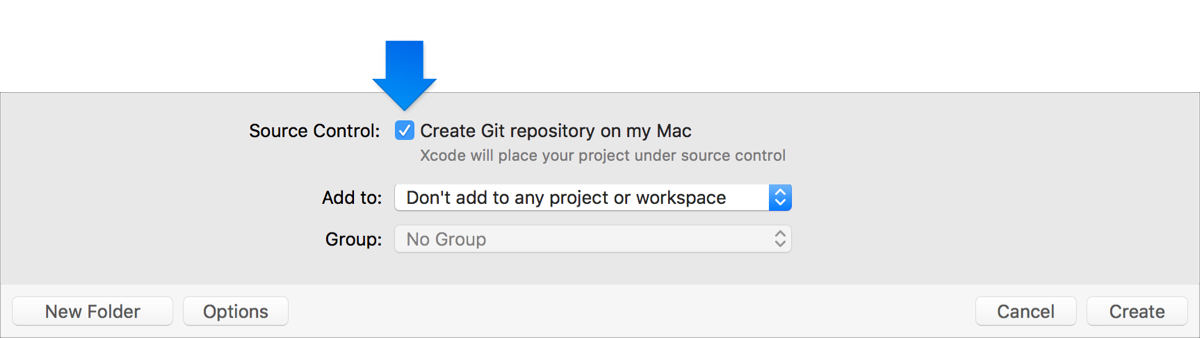
Later, you can create a remote from a local source code repository to back up your project or share it with others. If you use Bitbucket, GitHub, or GitLab, first add the remote repository account to Accounts preferences. To check out an existing project, choose Source Control > Clone, choose a repository from the table, then click Clone. If the repository doesn’t appear, enter a server address in the text field instead. Xcode downloads a working copy of the project.
If you use source control, a change bar appears in the gutter of the source editor marking the lines of code you changed since the last checkout. The style and color of the bars indicate the type of changes. For example, if a change is not committed, the bar is not filled. If a change is committed but not pushed, the bar is filled. If multiple people access a remote repository, the bars may indicate changes and conflicts introduced by other team members. To see the range of characters that changed and are in conflict with yours, hover the pointer over the red bar in the gutter. To see details of the previous commit and take some action, click the red bar. For example, if you want to use the team member’s change, select Discard Change in the dialog that appears, then choose Source Control > Pull.
To see the files you modified in the navigator, click the Project navigator ( ) and click the source control status icon (
 ) in the filter bar. The Project navigator shows only the files that have a source control status such as modified (M). You can use the filter bar to view the set of files you’re actively modifying.
To see the changes you’ve made to a file, select the file in the Project navigator, choose Comparison ( ) from the version editor pop-up menu in the toolbar. To find out who last changed each line in your file, choose Authors (
 ). To view the source control log for the file, choose Log (
 ).
).
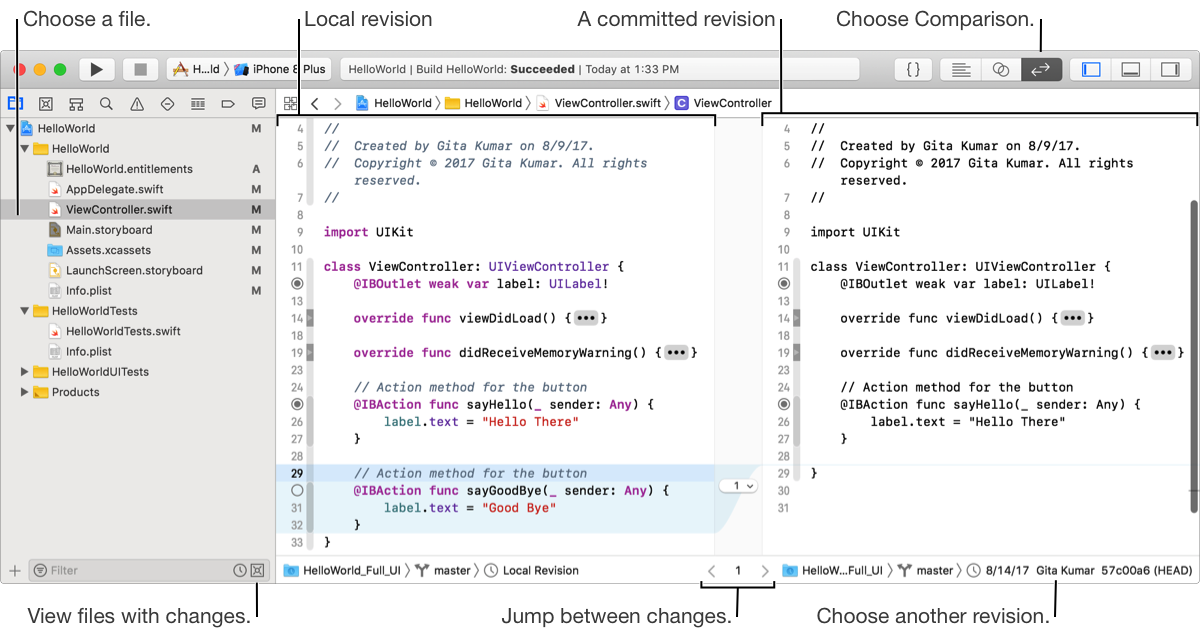
If you choose Comparison (), the editor compares the local revision with the last revision committed to source control. For each change, the comparison editor shows the line that changed and highlights the changes to the line. To compare the local revision to an older revision, choose the older revision from the jump bar on the lower right. To compare any two revisions, select them from the jump bars on the lower left and lower right.
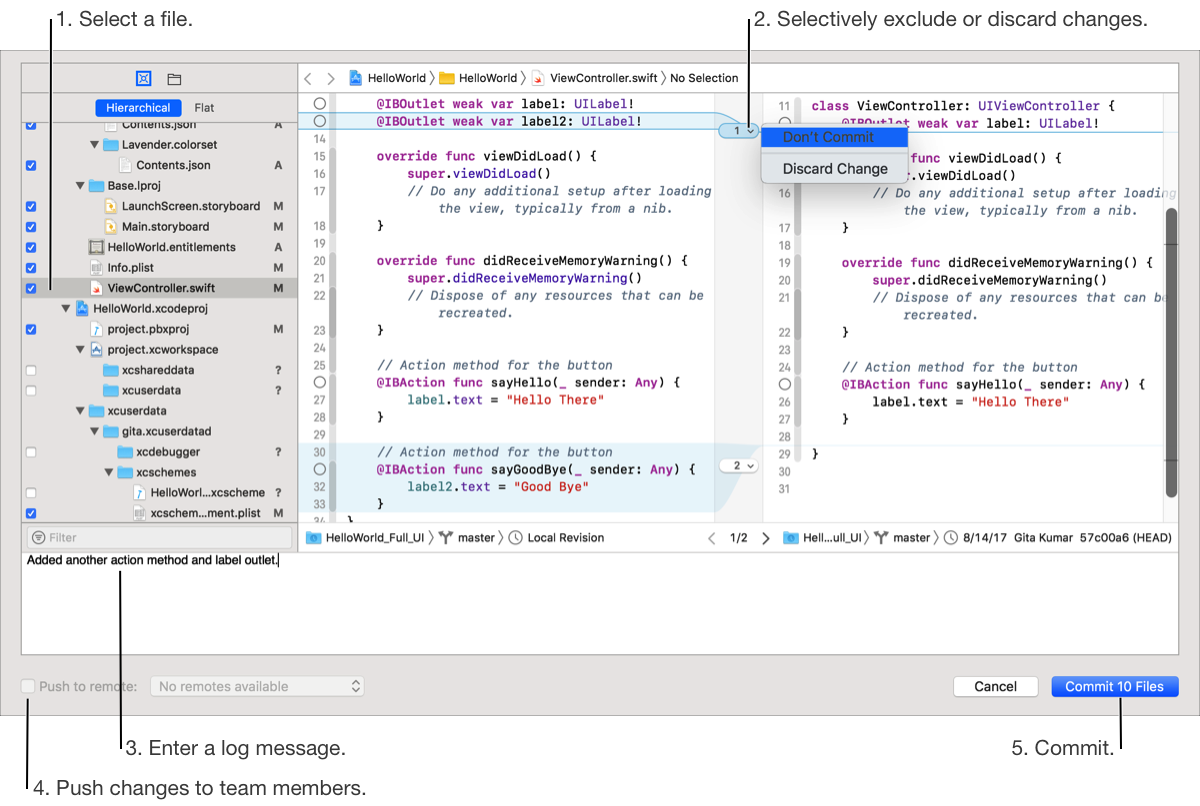
To save the changes you made to files, choose Source Control > Commit. In the sheet that appears, review the changes and exclude or discard specific changes. Then enter a commit log message, optionally select “Push to remote,” and click the Commit button.
Use the Source Control navigator to see your working copies and view the commits. You can also create a branch in a repository to isolate a feature or changes from the main branch. Then you can tag a commit in a branch before you distribute your app for testing or submit it to App Review.
Next Step: Test your app.