Format text on a card page
Click Projects in the toolbar, then double-click the card.
Click Front, Inside, or Back to select a card page (page options depend on the type of card you’re creating).
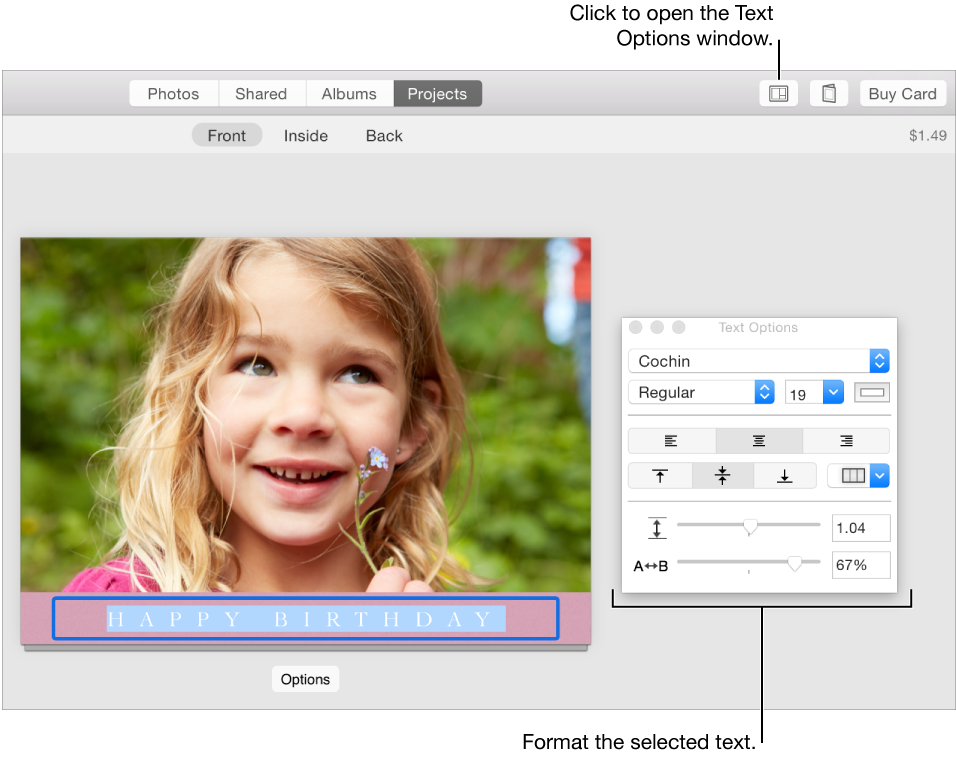
Select the text you want to format.
Do one of the following:
Choose Edit > Fonts > Show Fonts, then select the font options you want.
Click the Options button
 in the toolbar, then format the text using the controls in the Text Options window.