Add a new shape and begin typing, or select an existing shape, then type.
If a clipping indicator  appears, which signifies there’s too much text to display in the shape, click the shape and drag any white square until all the text is showing.
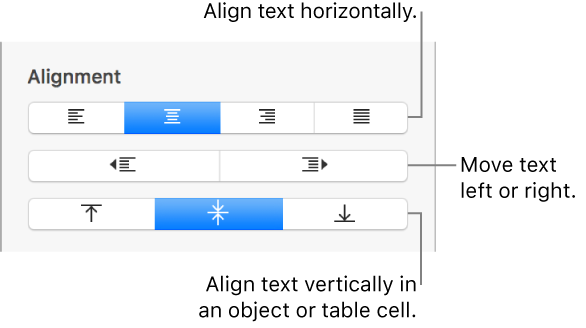
To align the text in the shape, select the shape, then, in the Format  sidebar, click the Text tab. Click the Style button near the top, then click any of the buttons in the Alignment section.