
You can create a new shape by combining one shape with another shape. For example, if you want to create a shape that looks like a heart, you can use three shapes–a diamond and two circles–and unite them into a single shape. You can also subtract shapes from other shapes, or remove the overlapping area between two shapes.

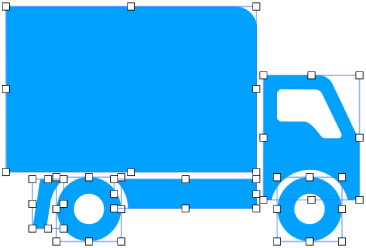
You can divide a compound shape—any shape that has multiple parts—into its components to create new shapes. Examples of compound shapes are a sneaker (its upper and sole), a lotus (its petals), and a truck (its wheels, its cab, and so on). In the shapes library, there’s no indication that a shape is compound, but most compound shapes have complex forms.
When you break a shape into its parts, you can edit each part as you would any other shape. You can use them as new shapes on their own, rearrange them into new shapes, and delete the ones you don’t want.
Shift-click to select at least two shapes that are touching or overlapping.
In the Format  sidebar, click the Arrange tab.
Click an arrangement button at the bottom of the sidebar:
Unite: Combines the selected shapes into a single shape.
Intersect: Creates a shape from the overlapping area.
Subtract: Removes the shape that’s layered on top of another shape. If necessary, move the shape you want to be removed to the top of the stack. To learn more about how to layer objects, see Layer, group, and lock objects.
Exclude: Creates a shape that excludes the overlapping area between the shapes.
Select a compound shape.
Choose Format > Shapes and Lines > Break Apart (from the Format menu at the top of your screen).
White selection handles appear on the parts of the shape that can be edited.
If Break Apart is dimmed in the menu, the shape you selected isn’t a compound shape.