
When you add a table, you choose from a number of predesigned styles that match your template. After you add a table, you can customize it however you like.
Do one of the following:
Place the table inline with text: Click in the text where you want the table to appear. The table is aligned according to the alignment of the paragraph where you added it. If the paragraph is aligned to the left, for example, you can’t center the table.
Place the table so it can be moved freely: Click somewhere other than text so there is no text insertion point. When the table is added, by default it is set to “Stay on Page” (instead of “Move with text”) so that you can position it wherever you like.
Click  in the toolbar, then select a table or drag one to the page.
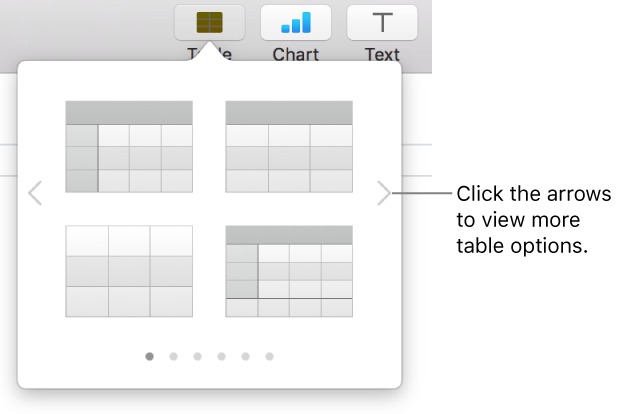
Do any of the following:
Type in a cell: Click the cell, then start typing.
Move the table: Click the table, then drag  in its top-left corner.
Note: If the table doesn’t move freely, it might be set to move along with text as you type. To change this setting, click the table, click  in the toolbar, click the Arrange tab, then click “Stay on Page.”
Add or remove rows: Click the table, click  in the bottom-left corner of the table, then click the arrows.
Resize the table: Click the table, click in its top-left corner, then Shift-drag the white square in the bottom-right corner to resize the table proportionally.
Change the alternating row color setting: Click the table; in the Format sidebar, click the Table tab; then deselect or select Alternating Row Color. (To choose a different color, click the color well.)
Change the look of a table: Click the table, then use the controls in the Table tab of the sidebar to make changes, such as adding a table name or outline.
When you create a new table from cells in an existing table, the original cell data is moved, not copied. The original table is left with empty cells, which you can delete.
Select the cells with the data you want to use to create the new table.
Click and hold the selection until it appears to lift, then drag it to another place in the document.
To delete the empty cells from the original table, select the empty cells, Control-click, then choose Delete Rows or Delete Columns.
Click the table, click in its top-left corner, then press Delete on your keyboard.