
The easiest way to change the look of a table is to apply a different table style to it, which you can do at any time.
If you customize the look of a table and want to apply the same formatting to other tables, you can create a new table style. The new style is saved along with the styles that come with the template.
Pages determines how to create the table style based on the most frequently used style for some attributes, such as cell fill and border style. For example, if your table uses many different fonts, the new table style adopts the font that appears most often in the table.
Click the table, then in the Format  sidebar, click the Table tab.
Select a different style from the options at the top of the sidebar.
Click the arrows on the left  and right
  if there are more available styles.
If you made changes to your table’s look before applying a different table style, the table retains those changes after you apply the new style. To override those changes when you apply a new style, Control-click the new table style, then choose Clear Overrides and Apply Style.
If you made changes to a table’s look—for example by changing the border of table cells—you can revert the changes by reapplying the original table style.
Click the table, then in the Format sidebar, click the Table tab.
Control-click the table style you want to reapply and choose Clear Overrides and Apply Style.
If you made changes to a table’s look and want to save these changes, you can create a new table style that can be used again later. Collaborative documents do not allow you to add new table styles.
Click the table with the formatting you want to save as a new style.
In the Format sidebar, click the Table tab.
Click the arrow to the right of the table styles to navigate to the last group of styles, then click  to add your style.
The new table style is added to the last group of styles in the sidebar. You can drag styles to organize them however you like.
You can create a table style that matches the colors of a particular image. This can be helpful when you want to make a visual connection between the data in the table and the subject of the image.
The new style has a table title, a header row and column, and a footer row—all of which match colors from the image. When you apply the new style to a selected table, it imparts the colors to these features in the table (if the table has them).
Click any table in your document, or click  in the toolbar to add a table.
In the Format sidebar, click the Table tab.
Navigate to an image anywhere on your computer.
To browse your photos, click  in the toolbar.
Drag the image to the table styles in the sidebar.
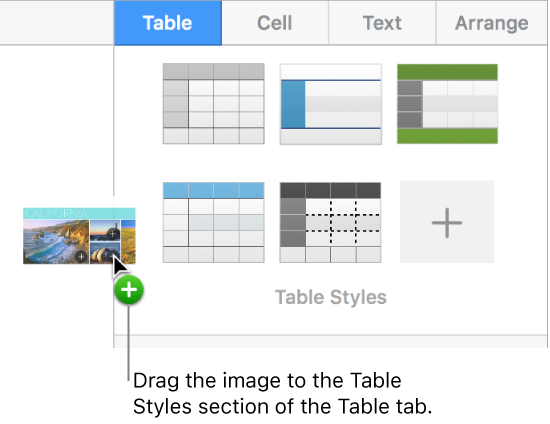
Alternatively, you can Control-click a table style in the sidebar, choose Create Style from Image from the shortcut menu, then browse for an image.
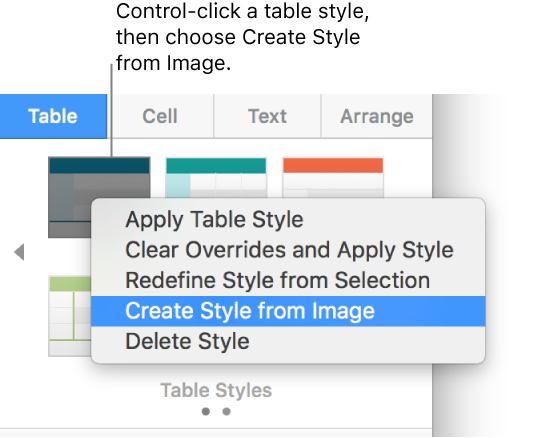
A new table style with colors from the image is added to the table styles at the top of the sidebar; it doesn’t replace the style you Control-clicked to open the pop-up menu.
To apply the new style to the selected table, click the style in the sidebar—it isn’t applied automatically when you create it.
To quickly change the look of tables that use the same style, you can redefine the style.
Select a table that uses the style you want to update, then modify its appearance so it looks the way you want.
Select the table you just modified (if it’s no longer selected).
In the Format sidebar, click the Table tab.
At the top of the sidebar, Control-click the style you want to redefine, then choose Redefine Style from Selection.
Choose one of the following:
Update all objects that use current style: Changes the look of all tables that currently use this style.
Don’t update objects, and disconnect them from the style: Changes only the selected table. The style for the tables that aren’t updated are removed from the Style tab because the style was replaced.
Click OK.
The style is updated in the sidebar, and all tables that use the style are updated.
You can rearrange the table styles in the sidebar for easier access to the ones that you use most often.
Click any table in your document, or click in the toolbar and add a table.
In the Format sidebar, click the Table tab.
At the top of the sidebar, click and hold the style you want to move until it flashes.
Drag the style to a new location.
If you have multiple style panes and want to move a style from one pane to another, drag it over a navigation arrow ( or ) to move to the next group, then drag it to where you want it.
Click any table, then in the Format sidebar, click the Table tab.
Control-click the style you want to delete, then choose Delete Style.