
A template is a predesigned set of elements for creating a document—a layout, placeholder text and images, and so on. Placeholders give you an idea of what a document created with this template might look like when you use its text and object styles. Every time you create a new document, you choose a template from the template chooser as a starting point.
After you open a template, you can add your own text, replace placeholder graphics or delete them, and add new objects (tables, charts, text boxes, shapes, lines, and media).
Open Pages and click the New Document button in the Open window, or choose File > New from the Pages menu at the top of the screen.
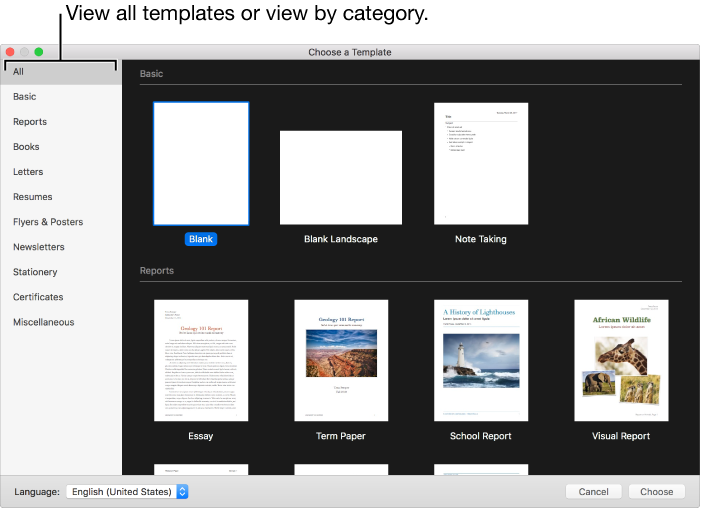
In the template chooser, scroll to find a template for the type of document (or envelope) you want to create, then double-click the template to open it.
To create a document that’s mainly text, choose one of the Blank templates (these are all word-processing templates).
To create a brochure, poster, or something with a more complex layout, choose a template that looks closest to what you want to create. The choices include a variety of word-processing and page layout templates.
To create an interactive book, choose a book template. Books in EPUB format can be opened in iBooks and other ebook readers.
If you need help creating your own document from the template, see Create a document.
Some Pages templates are designed specifically for word-processing (such as the Basic and Newsletter templates), and others for page layout (such as the Tab Flyer and Museum Brochure templates).
To see if you have a word-processing or page layout document, click  in the toolbar, then click Document. If the Document Body checkbox is selected, it’s a word-processing document. If the checkbox is deselected, it’s a page layout document.
After you begin creating your document, you can’t switch to a different template. You can, however, convert the document from word processing to page layout, and vice versa.
You can set a preference in Pages to always open a new document in a particular template instead of from the template chooser.
Choose Pages > Preferences (from the Pages menu at the top of your screen).
Click General at the top of the preferences window, then select “Use template.”
Do one of the following:
Use the currently selected template: Verify that the name of the template you want to use appears after “Use template.”
Choose a different template: Click the Change Template button, click a template, then click Choose.
Close the preferences window.
After you set this preference, you can still open a new document with a different template. Hold down the Option key, then choose File > New from Template Chooser (from the File menu at the top of your screen).
If you want to use a document as a model for other documents, save your work as a custom template.