
To create a document, you first choose a template to use as a starting point. Templates are designed for some of the more common types of documents (such as letters, reports, and flyers), and they use coordinated fonts, text styles, and colors for a unified look. Most templates also have placeholder elements like headings and images that you can replace with your own content.
To open Pages, click the Pages icon in the Dock, Launchpad, or the Applications folder.
If the template chooser (shown below) doesn’t appear, click the New Document button in the Open window that appears.
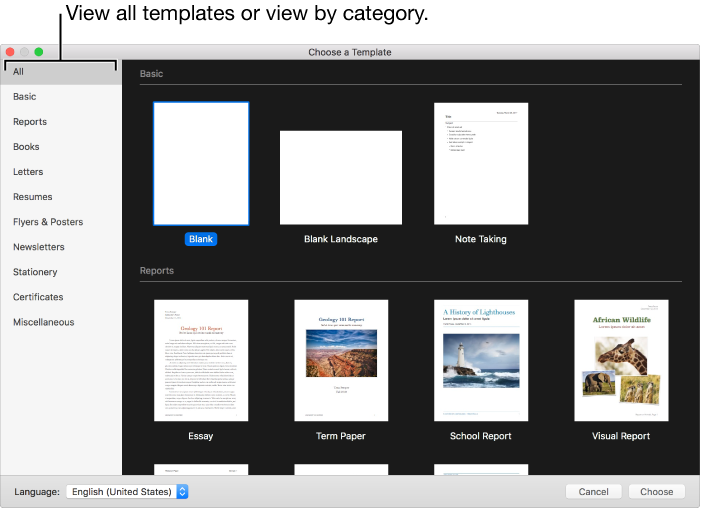
In the template chooser, scroll to find a template for the type of document (or envelope) you want to create, then double-click the template to open it.
To create a document that’s mainly text, choose one of the Blank templates (these are all word-processing templates).
To create a brochure, poster, or something with a more complex layout, choose a template that looks closest to what you want to create. The choices include a variety of word-processing and page layout templates.
Do any of the following:
Add or edit text in a word-processing template: Just begin typing. The blinking insertion point indicates where your text starts. To edit text, select the text, then type. To format the selected text, use the controls in the Format  sidebar on the right.
Replace placeholder text: Click the placeholder text, then type your own.
Note: Some templates include placeholder text written in lorem ipsum (scrambled Latin text, for example, “lorem ipsum dolor”), but the text you type to replace it appears in the language you use.
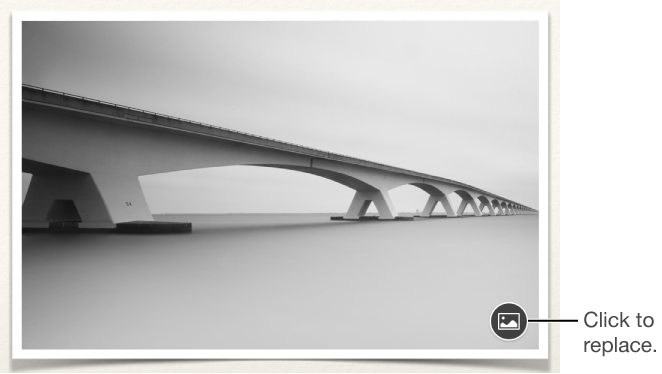
Replace placeholder images: Click  in the lower-right corner of a placeholder image to choose an image on your computer, or drag an image from your Mac or a webpage to a placeholder image.
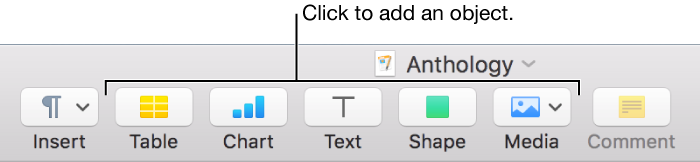
Add new text boxes, images, shapes, or other objects: Click an object button in the toolbar.
Add a page: In a word-processing document, a new page is automatically added as your typing reaches the end of a page. You can also add a blank page manually for both word-processing and page layout documents. Click the page that you want the new page to follow, then click the Add Page  button in the toolbar. For more information, see Add, delete, and rearrange pages.
Undo or redo recent changes: Choose Edit > Undo or Edit > Redo (from the Edit menu at the top of your screen).
To name your document and choose where to save it, choose File > Save, enter a name, choose a location, then click Save.
If iCloud is set up on your Mac, Pages saves your document there by default.
If you don’t want to keep a document you started, click the red close button in the top-left corner of the window instead, then click Delete in the dialog.
To close the document when you’re finished working, click the red close button in the top-left corner of the window.
Pages automatically saves your changes, so you won’t lose any of your work.
Later, you can change the name of the document or change where it's saved at any time.