
Select the text you want to change.
To change all of the text in a text box or a table cell, select the text box or triple-click the table cell.
In the Format  sidebar, click the Style button near the top.
If the text is in a text box, table, or shape, first click the Text tab at the top of the sidebar, then click the Style button.
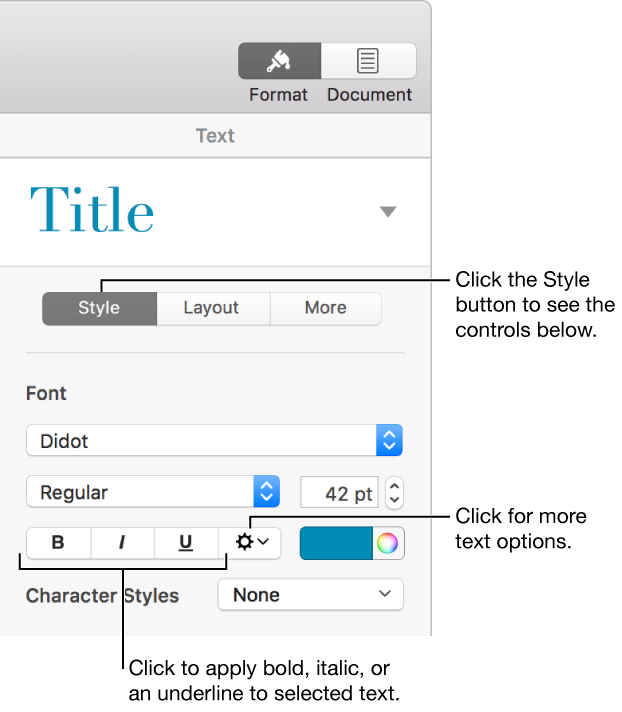
To add bold, italic, or underline, click one or more format buttons in the Font section.
To remove a specific format, click that button again.
If the font you’re using has other styles available (such as light or condensed), click the pop-up menu above the buttons to choose one of the styles.
To add strikethrough, click  , then select or deselect the Strikethrough checkbox.
Tip: You can set keyboard shortcuts to quickly apply bold, italic, underline, or other character styles to text.