
A paragraph style gets an override when you change the appearance of text (its color or size, for example) that uses the paragraph style. An override is indicated by an asterisk (*), or an asterisk and an Update button, next to the style name in the Paragraph Styles pop-up menu. To deal with an override, you can do one of the following:
Ignore it: Leave the override in place, and keep the edits you made to your text.
Update the paragraph style to incorporate the overrides: If you update the paragraph style, all text in your document that uses the style is also updated.
Remove the override: Revert your text to its original appearance and leave the paragraph style unchanged.
Note: For information on updating list styles, see Format lists.
When you update a paragraph style, all text in the document that uses that style is also updated.
Click anywhere in the text with the override.
In the Format  sidebar, do one of the following:
If there’s an Update button: Click Update.
If there’s only an asterisk: Click the style name, then move the pointer over the style name in the Paragraph Styles pop-up menu. Click the arrow that appears, then choose Redefine from Selection.
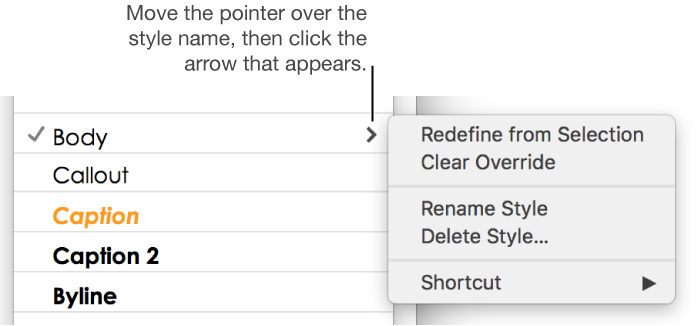
If the text is in a text box, table, or shape, first click the Text tab at the top of the sidebar to see paragraph styles.
If you don’t want to keep changes you made to text, you can revert the text to its original paragraph style (remove the overrides).
Click the paragraph with the override, or select all of the paragraphs with the override.
In the Format sidebar, click the paragraph style name near the top, then click the original style name (it has a gray checkmark to indicate an override).
If the text is in a text box, table, or shape, first click the Text tab at the top of the sidebar to see paragraph styles.
The override is cleared, the text reverts to the original style, and the checkmark changes to black.