
You can highlight text in the body of your document, in text boxes, and in shapes. These highlights aren’t visible in printed documents.
When multiple people are working on a document, each person’s highlights appear in a unique color. To learn how to change your color, see Set author name and comment color.
Tip: If you want highlights that are visible in your final document, add a background color to text in any color. This type of highlight isn’t part of the Pages review tools.
Select the text you want to highlight.
Do one of the following:
Press Shift-Command-H on the keyboard.
Choose Insert > Highlight from the Insert menu at the top of your screen. (The Insert button on the Pages toolbar doesn’t have the Highlight command.)
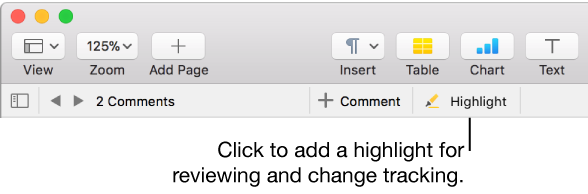
Click Highlight in the review toolbar at the top of the document.
The review toolbar is visible only if there are already comments, highlights, or tracked changes in the document.
You can’t highlight text in table cells, but you can add conditional highlighting to a cell to change the cell’s appearance based on its value.
Click the highlighted text.
In the popover, click “Add a comment,” then type your comment.
Click Done.
You can also add a comment to highlighted text in the Comments & Changes sidebar on the left. To open it, click  in the toolbar, then choose Show Comments Pane (or Show Comments & Changes Pane).
If a document is shared with others on iCloud, only you and the document owner can remove your highlight.
Move the pointer over the highlighted text, then click Delete in the popover.
If no popover appears, that means the highlight was added as color behind the text. To remove it, remove the background color.
Note: If the document is shared with others, only you and the document owner can delete your highlight. If someone else adds a comment to your highlight, the author name and color of the highlight changes to the comment author, and you can’t delete the comment.
You can quickly remove highlights and comments from body text in your document.
Select the text where you want to remove highlights and comments.
To remove them for all body text in the document, press Command-A on your keyboard.
Choose Edit > Remove Highlights and Comments (from the Edit menu at the top of your screen).
Highlights and comments on text in text boxes, shapes, and tables are not affected.