
In a word-processing document , you can track changes to body text (but not to text in text boxes or tables). Changed text appears in a different color from the surrounding text, and change bars appear in the margin. You can choose to show or hide tracked changes.
To review, approve, and reject changes, you can use the review toolbar and the Comments & Changes sidebar.
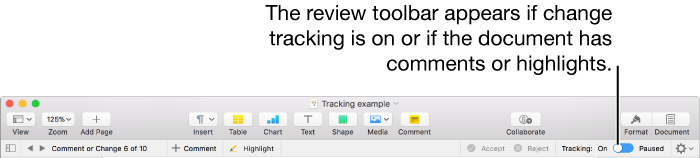
Note: If the document is shared on iCloud and you turn on change tracking, only people using Pages on a Mac or iOS device can edit the document. People who don’t have the Pages app and are using Pages for iCloud to collaborate can only view the document.
Do any of the following:
Turn on tracking: Choose Edit > Track Changes (from the Edit menu at the top of your screen). If the review toolbar is showing above your document, you can also click Track Changes in the toolbar.
Turn off tracking: Click  , then choose Turn Off Tracking.
You must either accept or reject all changes before you can turn tracking off.
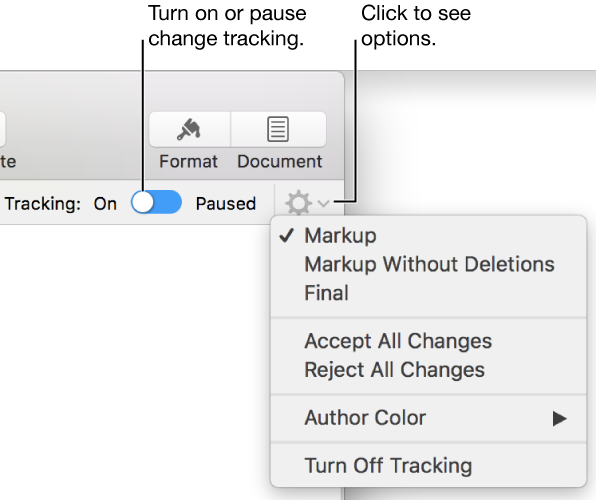
Pause tracking: Move the slider in the review toolbar to Paused.
Changes you make while tracking is paused don’t show in the markup.
In the review toolbar, click and choose an option:
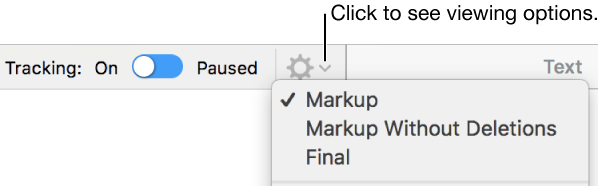
Markup: Displays deletions with a strikethrough and new text in a different color from the surrounding text.
Markup Without Deletions: Displays only the new text in a different color from the surrounding text. Deleted text is hidden.
Final: Displays text without markup, and deleted text is hidden. Pages continues to track changes, so if you change to a different view, you can see them.
To be sure all changes are visible, click in the review toolbar, then set the change tracking view to Markup.
Do any of the following:
For a specific change: Move the pointer over the marked text, then click Accept or Reject.
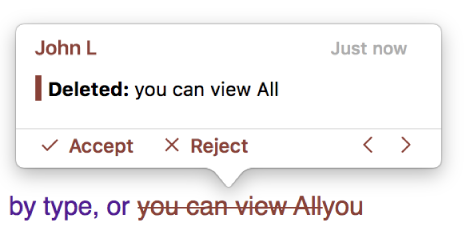
In the Comments & Changes sidebar, you can accept or reject a change.
For all changes in a range of text: Select the text, then click Accept or Reject in the review toolbar.
All tracked changes within the range are accepted or rejected at once.
For all text in the document: Click in the review toolbar, then choose Accept All Changes or Reject All Changes.
If you reject all changes, the text reverts to the state of the document before you started tracking.
You can review and edit changes in the Comments & Changes sidebar on the left side of the Pages window.
To open the Comments & Changes sidebar, click  on the left side of the review toolbar. Click the button again to close the sidebar.
You can also click  in the toolbar, then choose Show Comments & Changes Pane.
To change what’s shown in the sidebar, click View Options at the top of the sidebar to sort by page or date, filter changes by author, and hide comments or hide changes.
If you choose Sort by Document from the View Options menu, the sidebar scrolls as you scroll the document.
If you filter changes by author so that your changes aren’t visible in the sidebar, then you make changes, your changes appear in the document but not in the sidebar. To make changes appear in the sidebar, change the filter to include your changes, or click Show All at the top of the sidebar.
To see a specific comment or change, move your pointer over it in the document; the sidebar scrolls to show the content, and a line appears connecting the change with its corresponding entry in the sidebar. If you don’t see a line, make sure no sidebar item is selected.
To widen or narrow the sidebar, drag its right edge.
To change the size of the text in the sidebar and in comments, choose Pages > Preferences (from the Pages menu at the top of your screen), then click General at the top of the window. Click the Text Size pop-up menu, then choose a size.