
You can export a Pages document to save a copy of it in another format—Microsoft Word, PDF, plain text (TXT), Rich Text Format (RTF), ePub, or Pages '09. Exporting a document is useful when you’re sharing it with others who may use different software from you. Any changes made to the exported document don’t affect the original.
Note: You can’t export page layout documents in plain text or Rich Text Format or in a reflowable ePub layout.
Open the document, then choose File > Export To > [file format] (from the File menu at the top of your screen).
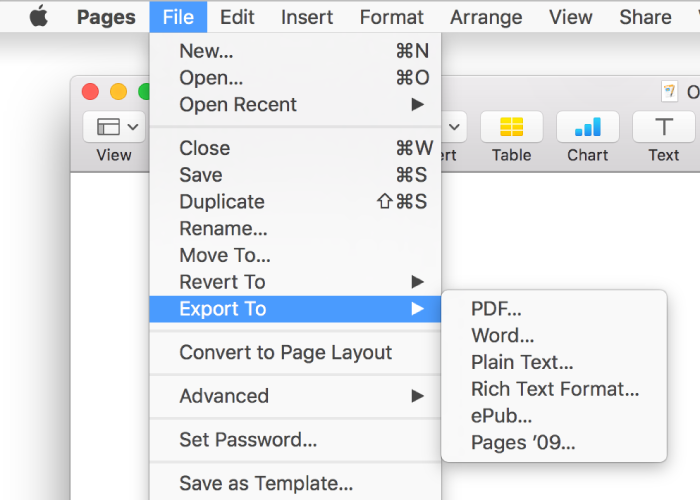
Specify export settings, which differ depending on the file type:
PDF: Choose an image quality. The higher the image quality, the larger the file size of the exported copy. To restrict access to the copy, select the “Require password to open” checkbox, then enter the requested information.
Word: To restrict access to the copy, select the “Require password to open” checkbox, then enter the requested information. If the file needs to be compatible with an older version of Word (1997-2004), click Advanced Options, then choose .doc from the pop-up menu.
Plain Text: Body text is exported as plain (unformatted) text. Text boxes, shapes, images, lines, tables, and charts aren’t exported. Page layout documents don't have body text, so they can’t be exported as plain text.
Rich Text Format: Body text and tables are exported as formatted (RTF) text and tables. If the document has text boxes, shapes, lines, and charts that can be exported, they are exported as images, and the document is exported in RTFD file format. Other applications may not be able to open an RTFD file. Page layout documents can’t be exported in RTF or RTFD format.
ePub: For information about the options for ePub, see the task below.
Pages '09: To restrict access to the copy, select the “Require password to open” checkbox, then enter the requested information.
Click Next, then type a name for the document.
The filename extension (.pdf or .epub, for example) is automatically appended to the document name.
Enter one or more tags (optional).
To choose where to save the document, click the Where pop-up menu, choose a location, then click Export.
To see more locations, click the arrow button next to Save As.
To make it possible to read your document in an eBook reader (such as iBooks) or to publish it on the iBooks Store, you can export it in ePub format.
Open the document, then choose File > Export To > ePub (from the File menu at the top of your screen).
Enter the requested information:
Title and Author: Enter the title and author you want viewers to see on the iBooks Store.
Cover: Use the first page of the document or choose an image file.
Layout: For a word-processing document, you can choose “Fixed layout” to preserve the layout of the page, or Reflowable so readers can adjust the font size and style (which may change how much content is visible on each page). Page layout documents can use only a fixed layout.
Category and Language: Click Advanced Options, then assign an iBooks Store category for the ePub and indicate the language of the document.
Embed Fonts: Click Advanced Options, then select the checkbox if you want to include TrueType and OpenType fonts in your ePub.
Click Next, then type a name for the document.
The filename extension .epub is automatically appended to the document name.
Enter one or more tags (optional).
To choose where to save the document, click the Where pop-up menu, choose a location, then click Export.
To see more locations, click the arrow button next to Save As.
Note: If you set a password, it protects only your exported copy, not the original file. To set a password for the original document, see Password-protect a document. If the original file already has a password, it applies to the exported file as well.
If you’re sending the document to someone else, you can also select a different format when you send it. See Send a copy of a document for more information.