
You can create text links that your readers can tap or click to open a webpage or a preaddressed email message. You can edit these links or deactivate them so that they appear and behave as normal text.
If you don’t want Pages to automatically format web and email addresses as active links, you can turn off automatic formatting for links.
You can add a link in your document that opens a webpage when the reader taps or clicks it. Readers must be connected to the internet for the link to work.
Select the text you want to turn into a link.
Do one of the following:
Click  in the toolbar, choose Add Link, then click the “Link to” pop-up menu and choose Webpage.
Choose Format > Add Link > Webpage (from the Format menu at the top of your screen).
Click the “Link to” pop-up menu, then choose Webpage.
Enter a URL in the Link field.
To change the text of the link, type your edited text in the Display field.
For example, you may want the link in the document to only show the domain name and not the entire web address.
Click Go to Page to verify the link.
You can add a link in the document that opens a preaddressed email when the reader taps or clicks the link. Readers must have an email account set up for the link to work.
Select the text you want to turn into a link.
Do one of the following:
Click in the toolbar, choose Add Link, then choose Email.
Choose Format > Add Link > Email (from the Format menu at the top of your screen).
Click the “Link to” pop-up menu, then choose Email.
Enter an email address and subject in the To and Subject fields.
To change the text of the link, type your edited text in the Display field.
For example, you may want the link in the document to show the recipient name and not the entire email address.
Click Go to Email to check the email setup.
Do one of the following:
Edit the link: Click the link, click Edit, then make your changes.
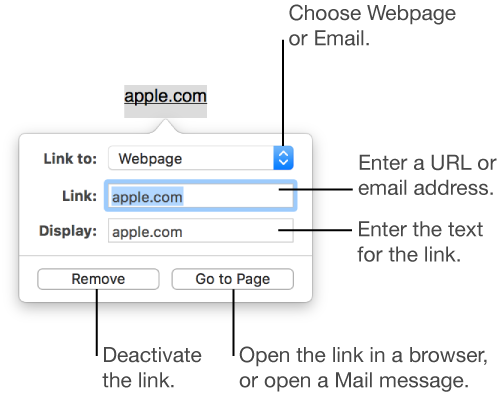
Deactivate the link: Click the link, then click Remove to deactivate the link.
If you don’t want Pages to automatically format website URLs and email addresses as clickable links, you can turn off Smart Links.
To turn off automatic formatting for just specific text, rather than for the whole document, select that text.
Choose Edit > Substitutions > Show Substitutions (from the Edit menu at the top of your screen).
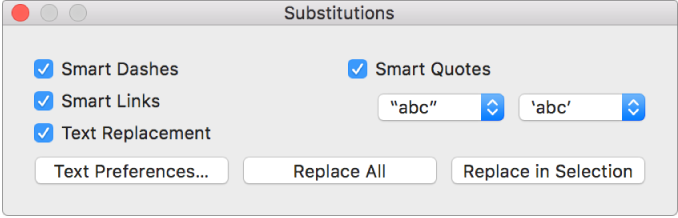
Deselect the Smart Links checkbox.
When Smart Links is turned on for the document, a checkmark appears next to Smart Links in the Substitutions menu. You can deselect Smart Links in the menu to turn it off for new text you type, but existing links won’t change. To deactivate existing links, follow the steps above in “Edit or deactivate a link.”
Tip: You can add a button to the toolbar that opens the link window for selected text.