
If you create a document that you want to use again as a model for other documents, you can save it as a template. Creating your own template can be as simple as adding your company logo to an existing template, or you can design a completely new template.
You can add your custom template to the template chooser, save it as a file to share with others, and install it on your iOS device.
Choose File > Save as Template (from the File menu at the top of your screen).
Click an option:
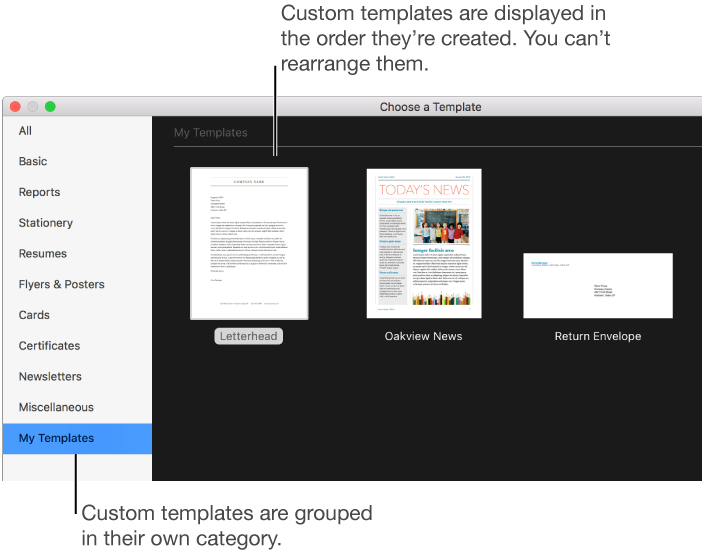
Add to Template Chooser: Type a name for the template, then click Choose. Your template appears in the My Templates category in the template chooser.
Save: Type a name for the template, then choose where you want to save it.
If you save it to iCloud, the next time you open Pages on your iOS device, the template appears as a downloadable file in the document manager.
If you want to email the template to others or to yourself, save it to your computer. You can attach the template file to an email message.
To learn more about creating custom templates in Pages, see Create a custom template.
You can install a custom template saved to your computer or to a server, or a template that you received as an attachment in an email, by adding it to the template chooser in Pages.
Note: If you chose Add to Template Chooser when you saved your custom template, it’s already installed and can be found in the My Templates section of the template chooser.
Double-click the template file (it has the file extension “.template”), then click Add to Template Chooser.
You can set Pages to always open a new document from the same template instead of from the template chooser.
On your Mac, move the template file to iCloud, iTunes, or a WebDAV server, or send the file as an email attachment.
On your iOS device, do the following to install a template from these sources:
iCloud: If Pages on your device is set up to use iCloud, and you chose Add to Template Chooser when you saved your custom template, the template appears automatically in the document manager and is identified by a template badge. Tap the template thumbnail, then tap Add.
AirDrop: Swipe up from the bottom of the screen to open Control Center, then tap AirDrop. Tap a discovery option, and when the AirDrop message appears, tap Add.
An email: In Mail, tap the attachment, then tap the screen. Tap  at the top of the screen, tap Open in Pages, then tap Add.
iTunes or a WebDAV server: In the document manager toolbar, tap Locations, tap “Copy from iTunes” or “Copy from WebDAV,” then tap Add.
The template appears in the My Templates category in the template chooser.
In the template chooser, Control-click the template name, then choose Rename or Delete.
If you’re renaming, type a new name, then press Return.
Custom templates always appear in My Templates in the template chooser. You can’t rearrange templates, and you can’t delete templates that came with Pages.