
Pages automatically saves a document as you work and gives it a default name, such as Untitled 1. You can save a document with your own name and choose where to save it—on your desktop, in a folder, and so on. You can also rename a document or create a duplicate of it with a different name.
To save a copy of a document in another format (for example, Microsoft Word, PDF, Pages ’09, and so on), you export the document in that format.
Click anywhere in the document window to make it active, then choose File > Save (from the File menu at the top of your screen).
Enter a name in the Save As field, then enter one or more tags (optional).
To choose where to save the document, click the arrow next to the Save As field, then choose a location (for example, a folder or your desktop) in the dialog you see.
To make the document appear in Pages on all of your iOS devices set up with iCloud Drive, save the document in the Pages folder in iCloud Drive. (To see this option, iCloud Drive must be set up on your Mac.)
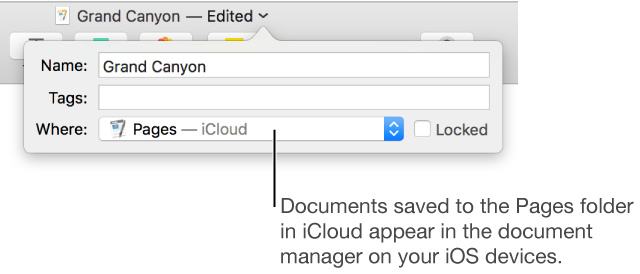
Tip: To create a new folder for the document, choose a location for the folder, then click New Folder at the bottom of the Save As dialog. Enter a name for the folder, then click Create.
Click Save.
By default, Pages saves your document as a single file. If your document is over 500 MB or contains large video or image files, Pages may perform better if you save the document as a package.
Save as a package file: Click anywhere in the document window to make it active, then choose File > Advanced > Change File Type > Package (from the File menu at the top of your screen).
Revert a package file to single-file format: Choose File > Advanced > Change File Type > Single File. You may need to revert because some web or email services don’t allow you to upload or attach a package file.
See the Apple Support article Save documents as a package or a single file for more information.
Click the document name at the top of the Pages window, then type a new name.
Click anywhere outside the dialog to dismiss it.
Click anywhere in the document window to make it active, then choose File > Duplicate (from the File menu at the top of your screen).
A new document opens with its name selected at the top of the document.
Type a new name, then press Return.
The copy is saved to the same location as the original.