
A document can contain one or more sections. Each section can have its own unique page numbering, margins, headers and footers, and background image. If the template you’re using has predetermined sections, you can add more, or delete any of them.
To see how your document is divided into sections, click  in the toolbar, then choose Show Thumbnails. When you click a thumbnail, all thumbnails for the pages in the same section are outlined in yellow. Word-processing documents can have more than one page in a section; in page layout documents, each page is a section.
Click where you want to add the new section.
You can start the section before or after the page where you placed the insertion point.
Click the Section tab at the top of the sidebar on the right, then click the “Create new section” pop-up menu and choose an option.
If you don’t see a sidebar, or the sidebar doesn’t have a Section tab, click  in the toolbar.
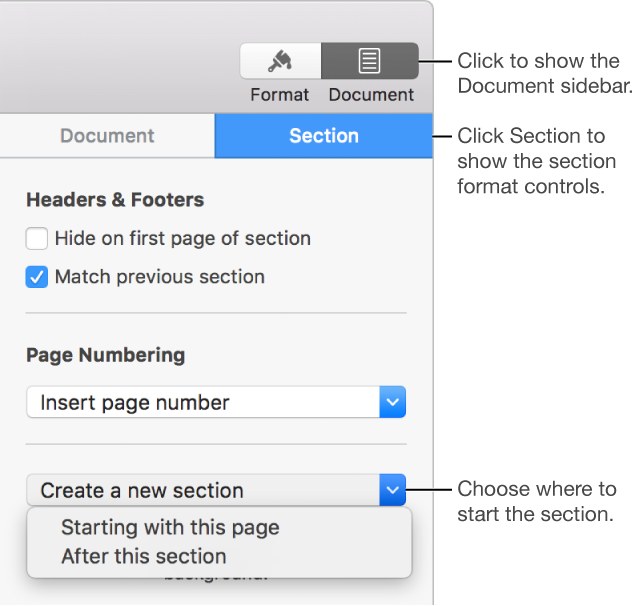
Use other controls in the sidebar to set headers, footers, and page numbers for the section.
Click at the beginning of the paragraph to place the insertion point.
Choose Insert > Section Break (from the Insert menu at the top of your screen).
Note: The Insert button in the toolbar doesn’t have the section break command.
Click the Section tab at the top of the sidebar on the right, then use the controls to set headers, footers, and page numbers for the section.
If you don’t see a sidebar, or the sidebar doesn’t have a Section tab, click in the toolbar.
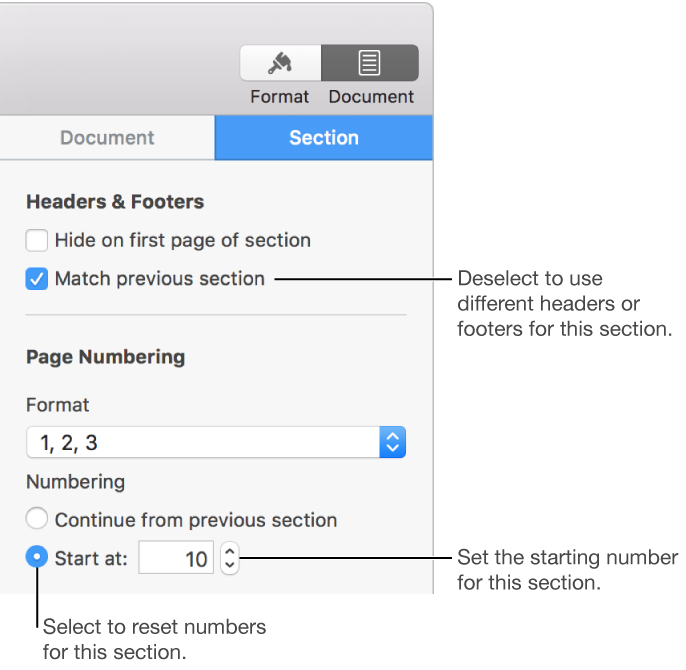
Deleting a section also deletes its contents. To remove a section but not its contents, copy and paste the contents someplace else in the document before you delete the section.
Click in the toolbar, then choose Show Page Thumbnails.
Select the section in the thumbnail sidebar, then press Delete on your keyboard.
Click in the toolbar, then choose Show Page Thumbnails.
Select the section in the thumbnail sidebar, then choose Edit > Duplicate Selection (from the Edit menu at the top of your screen).
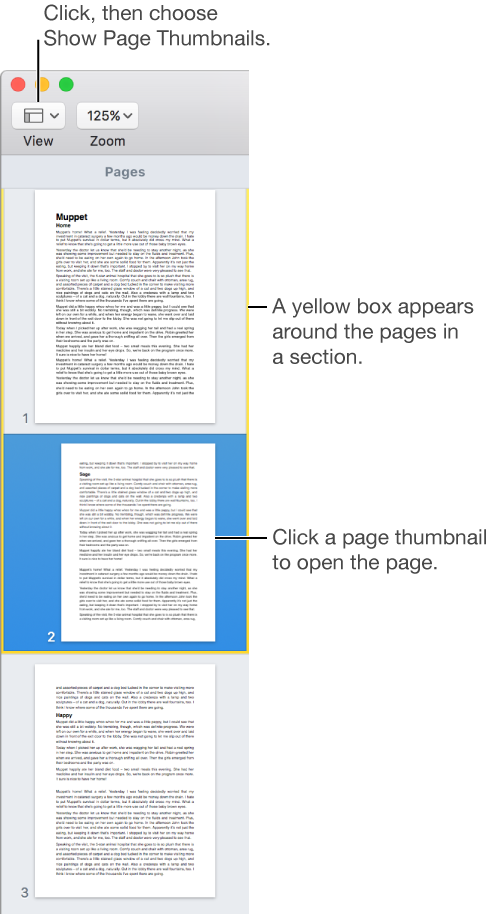
The new section is added below the original. You can drag it in the thumbnail sidebar to where you want it.