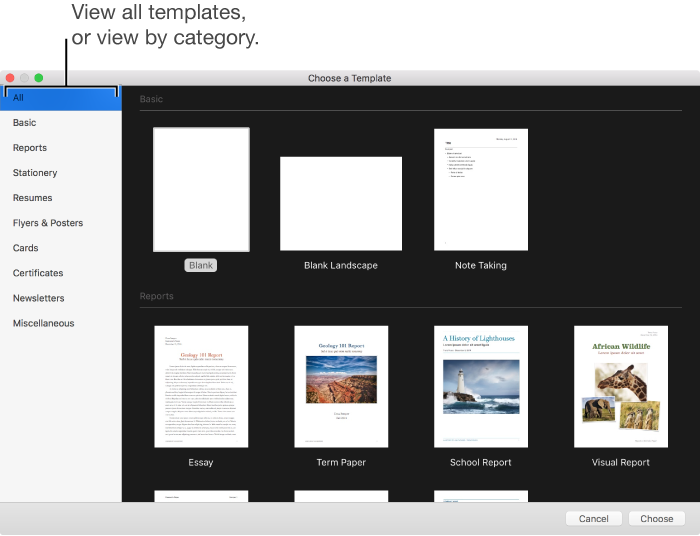

You can use Pages to create any kind of document you want, from a simple word-processing document that’s mainly text, to a page layout document with graphics, interesting font treatments, and more.
To create any document, you always start with a template, then modify it however you like:
Choose a Blank template if you want to just start typing on a page.
Choose one of the templates with placeholder text and graphics if you want to create a document with a more complex layout, like a brochure or newsletter.
After you open a template, you can add your own text, replace placeholder graphics or delete them, and add new objects (text boxes, images, shapes, tables, and charts).
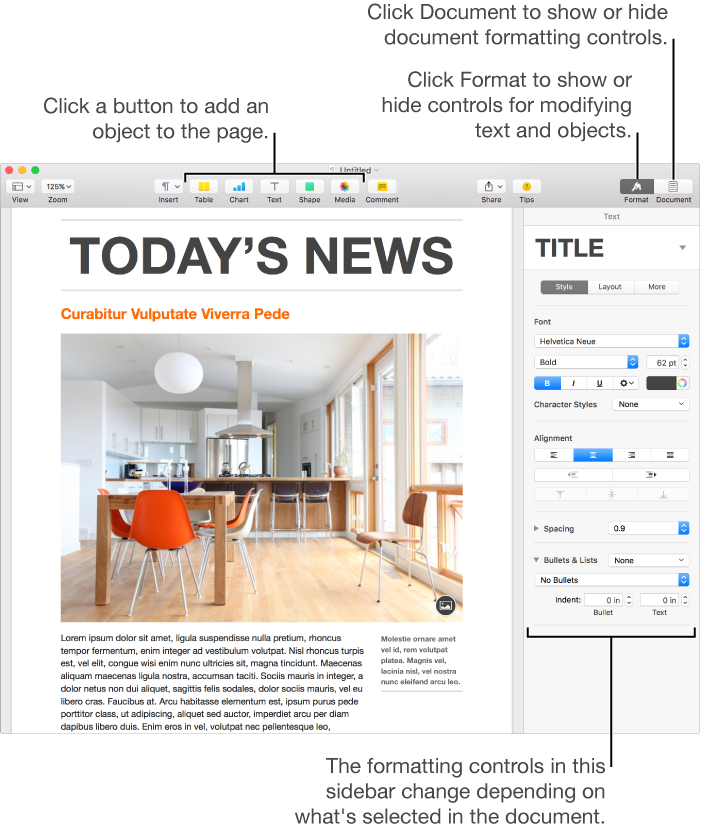
Use the formatting and layout controls in the sidebar on the right side of the Pages window (shown below) to modify text and objects in your document. The sidebar shows only controls for the text or object you selected.
The fastest way to change the look of text or an object is to apply a new style to it:
For text, click the paragraph style name (Heading or Body, for example) at the top of the Format sidebar, then choose a new paragraph style.
For objects, click one of the six object styles at the top of the Format sidebar.
You can modify text and objects however you like by using the other controls in the sidebar, and you can create your own paragraph and object styles, or update the existing styles with your changes.
If you want to use your changes for other documents, save your work as a custom template.
For more help getting started with Pages, click the links at the bottom of this page, or click topics in the table of contents on the left side of this Pages Help window. If you don’t see the table of contents, click  to open it, or widen the Pages Help window. You can also type a question or search term in the search field.