Resize table rows and columns

You can change the width of specific columns and the height of specific rows in a table.

Note: The tasks below apply to a table you add to your page. They don’t apply to a page divided into columns.

Resize table rows or columns manually

  1. Select the table.

  2. Do one of the following:

    • Resize a row or column: Move the pointer below the row number or to the right of the column letter until you see Column width change pointer, then drag to resize.

    • Resize multiple rows or columns: Select rows or columns, then move the pointer below the bottommost row number or to the right of the rightmost column letter until you see Column width change pointer, then drag to resize. They’re resized proportionally.

    • Resize all rows or columns in a table: Select the table, then drag a selection handle (a white square). The rows or columns are resized proportionally.

      As you drag, yellow alignment guides may appear when the table’s rows or columns align with the rows or columns of another table on the canvas. (The tables must be set to Stay on Page in the Arrange tab at the top of the sidebar on the right).

Note: If the cell contents no longer fit after you resize a row or column, you can adjust the row or column so that the contents fit. See the task below to learn how.

Size a table row or column to fit its contents

Make table rows or columns the same size

  1. To make some rows or columns the same size, select the rows or columns; to make all the rows or all the columns in the table the same size, select the table.

  2. Choose Format > Table > Distribute Rows Evenly or Distribute Columns Evenly (from the Format menu at the top of your screen).

Resize a table row or column precisely

  1. Click a cell in the row or column you want to resize.

  2. In the sidebar on the right, click the Table tab.

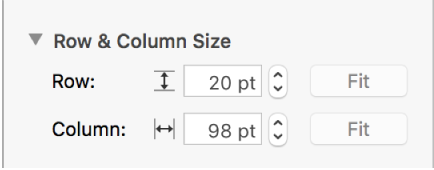
  3. Click the disclosure triangle next to Row & Column Size, then click the arrows to specify the size you want.

    If you don’t see the sidebar, or the sidebar doesn’t have a Table tab, click Format button in the toolbar.

    The dialog for setting a precise row or column size

    The entire row or column is resized. Selecting cells from more than one row or column resizes all of the rows or columns included in the selection.

See also
Add and rearrange rows and columns in tables
Format columns of text