
Align or justify text
Select one or more paragraphs; a text box; a shape with text; or a table cell, row, or column.
Click the Style button near the top of the sidebar on the right.
If you don’t see a sidebar, or the sidebar doesn’t have a Style button, click
 in the toolbar. If the text is in a text box, table, or shape, first click the Text tab at the top of the sidebar, then click the Style button.
In the Alignment section, click the alignment buttons you want.
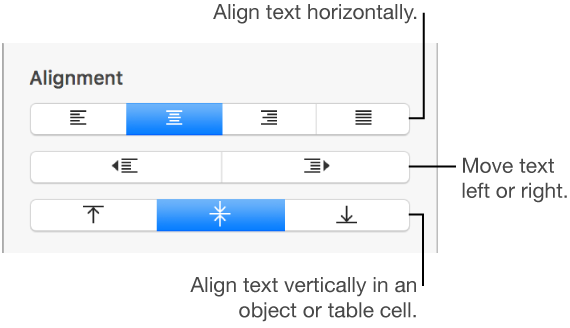
To apply these changes to all of the paragraphs in your document that use this paragraph style, click the Update button next to the paragraph style name at the top of the sidebar.