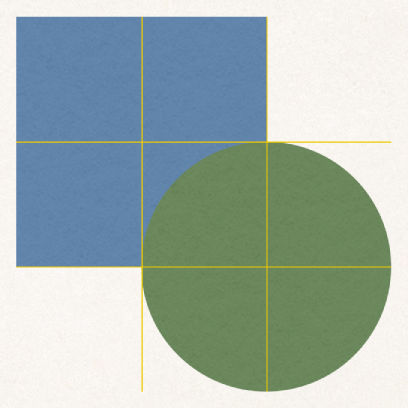

Use alignment and spacing guides to help you place objects precisely. When guides are turned on, they appear as you drag an object on a page in alignment with, or equidistant to, another object. You can turn the guides off and on as needed.
You can also add your own horizontal or vertical alignment guides, and place them anywhere on a page. These alignment guides don’t appear and disappear as you drag objects, but remain visible while you’re working.
Choose Pages > Preferences (from the Pages menu at the top of your screen), then click Rulers at the top of the preferences window.
Select any of the alignment guides:
Center guides: Indicate when an object’s center aligns with another object’s center or the center of the page.
Edge guides: Indicate when an object’s edges align with another object’s edge or an edge of the page.
Sizing guides: Indicate when an object matches another object’s size in a particular dimension (for example, height).
Spacing guides: Indicate when three or more objects are placed equally apart in a line.
You can also change the color of the alignment guides. Click the color well next to Alignment Guides in Rulers preferences, then choose a color.
You can add yellow alignment guides that remain visible on the page while you’re working, even if you leave the page and return to it later. You can add as many guides as you like and position them to suit your needs. Alignment guides are unique to each page in a document.
To add persistent alignment guides, rulers must be showing.
If you don’t see rulers, click  in the toolbar, then choose Show Rulers.
If you still don’t see the vertical ruler, choose Pages > Preferences (from the Pages menu at the top of your screen), click Rulers, then select the checkbox next to “Enable vertical ruler for documents with body text.”
Move the pointer over the vertical or horizontal ruler, then drag to the page.
To change the location of an alignment guide, drag it.
Do any of the following:
Remove a horizontal guide: Drag it to the top of the page.
Remove a vertical guide: Drag it to the left of the page.
Hide all guides: Choose View > Guides > Hide Guides (from the View menu at the top of your screen, not the View button in the toolbar).
To show all guides, Choose View > Guides > Show Guides.
Clear all guides: Choose View > Guides > Clear All Guides on Page.
Choose Pages > Preferences (from the Pages menu at the top of your screen), then click Rulers.
Click the color well next to Alignment Guides, then choose a color.
Tip: You can add a button to the toolbar to show and hide guides.