
Create a new document
Open Pages, then click New Document at the bottom of the dialog.
If you don’t see a dialog with a New Document button, choose File > New (from the File menu at the top of your screen).
Double-click a template to open it.
Templates are designed for either word processing (documents that are mainly text, like a letter or report) or page layout (documents with graphic elements, like a flyer or poster). Once you begin editing a document, you can’t switch to a different template.
When the new document opens, do any of the following:
For a blank template: Begin typing.
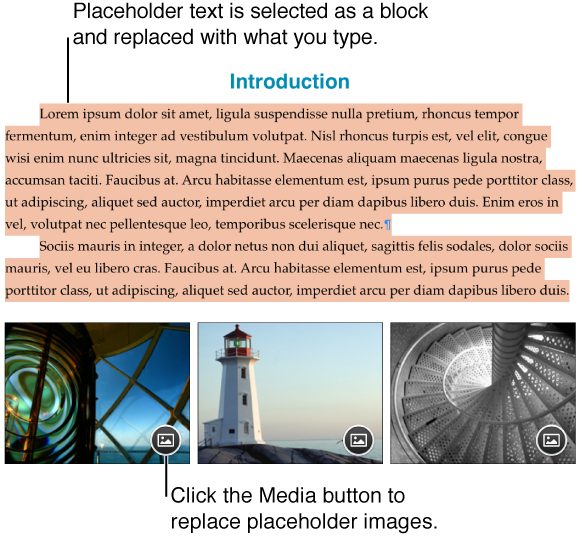
For a template with placeholder text and images:
Click placeholder text, then type your own.
Click
 in the lower-right corner of placeholder images to add an image from iPhoto or Aperture.
Drag an image from your Mac or a webpage onto a placeholder image or anywhere in the document.
Tip: To undo your recent changes, choose Edit > Undo or Edit > Redo (from the Edit menu at the top of your screen).
When you’re ready to close the document, click the close button (the red circle) in the upper-left corner of the window, then type a name and choose a location for your document.
If you don’t want to keep a document you started, click Delete in the Save dialog.
If iCloud is set up on your Mac, Pages saves to iCloud by default, but you can save it to your Mac instead. You can also change the document’s location at any time.
If you want to create a copy of your document in a format other than Pages, you can export a Pages document to another format, such as Word, PDF, and ePub.
You can change a document from word processing to page layout or vice versa. For example, if you choose a word processing template such as a report, then decide that you want to move blocks of text and graphics around, you can convert the document to a page layout document that lets you layer text and objects.