A specific location on the page. Adding text or other objects doesn’t affect the object’s position.
Specific text. The object moves with its associated text, and a marker  appears in the text where the object is anchored.

An object is any item you place on a page. Photos, shapes, charts, and text boxes are some examples of objects. When you place an object on a page, it must be anchored to one of the following:
A specific location on the page. Adding text or other objects doesn’t affect the object’s position.
Specific text. The object moves with its associated text, and a marker appears in the text where the object is anchored.
In a page layout document, objects are always anchored to the page. In a word-processing document, you can specify how an object is anchored.
For both types of documents, you can also specify how text wraps around objects.
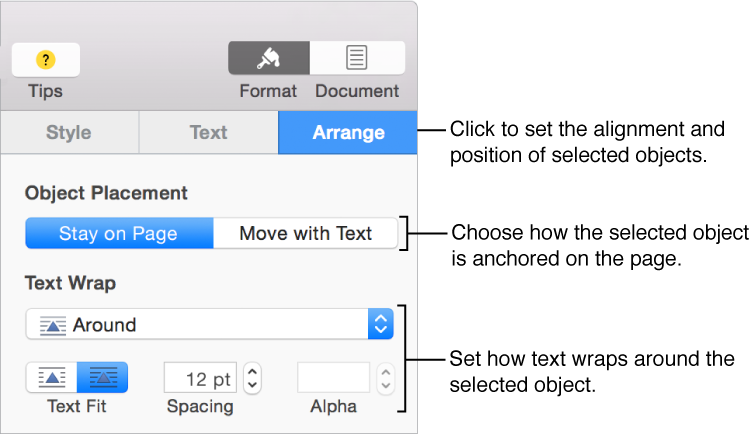
Select the object.
Click the Arrange tab in the sidebar on the right.
If you don’t see the sidebar, or it doesn’t have an Arrange tab, click  in the toolbar.
Click an option in the Object Placement section:
Stay on Page: The object stays in a fixed location. You can drag the object wherever you like on the page, and it stays there regardless of text flowing around it.
Move with Text: The object maintains its position in relation to the text it’s anchored to.
If the document is set to show invisibles, or if you select the object, you see a marker in the text where the object is anchored. You can’t drag the marker to another location.
If Move with Text is dimmed, it means the document is a page layout document. You can convert it to a word-processing document.
Select the object.
Click the Arrange tab in the sidebar on the right.
If you don’t see the sidebar, or it doesn’t have an Arrange tab, click in the toolbar.
Click the Text Wrap pop-up menu, then choose an option:
Automatic: The object uses whichever text wrap option seems most appropriate for the object’s placement in relation to the page and surrounding text.
Around: Text flows on all sides of the object.
Above and Below: Text flows above and below the object, but not on the sides.
Inline with Text: The object sits on the baseline of the text and moves with the text. If you don’t see this option, make sure Move with Text is selected.
None: The object doesn’t affect the flow of text.
If the object isn’t rectangular and you want the text to follow the object’s outline, click the Text Fit button on the right.
To change the amount of space between the text and the object, adjust the value in the Spacing field.
If the object has an alpha channel (transparency), you can make text show through the transparent area by adjusting the value in the Alpha field.