Change text color
Select the text you want to change.
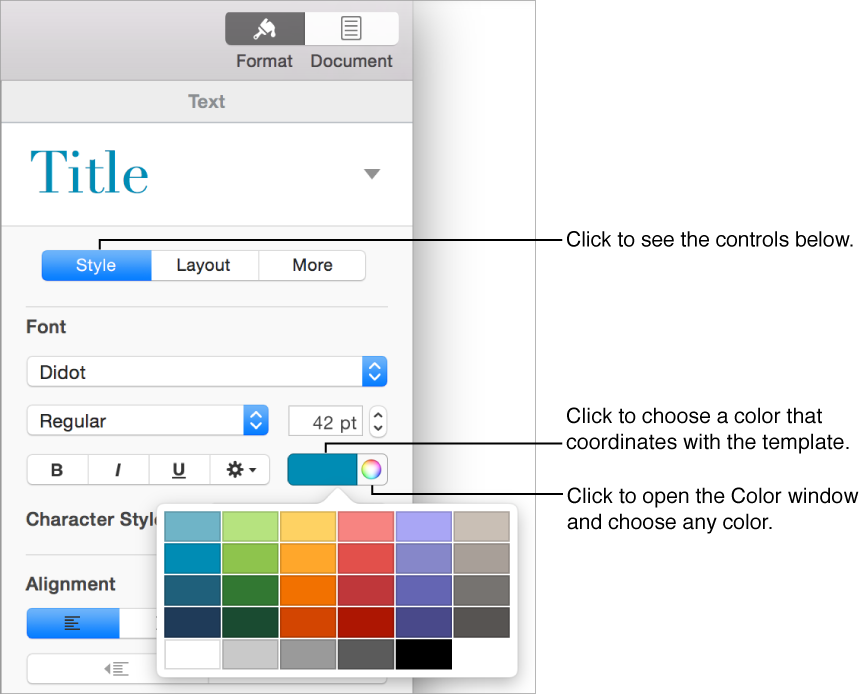
Click the Style button near the top of the sidebar on the right.
If you don’t see a sidebar, or it doesn’t have a Style button, click
 in the toolbar. If the text is in a text box, table, or shape, first click the Text tab at the top of the sidebar, then click the Style button.
Do one of the following:
For colors that coordinate with your template: Click the color well in the Font section, then choose a color.
For any color: Click the color wheel, then choose a color from one of the color palettes.