
You can layer text and objects to create the appearance of depth on a page. You can then move objects higher (forward) or lower (backward) in the stack.
You can group multiple objects so that you can move, resize, and rotate them as a single unit. To avoid inadvertently moving, modifying, or deleting an object, you can lock it.
Drag an object so that it overlaps with one or more other objects.
Tap  , then tap Arrange.
Tap an object, then do one of the following:
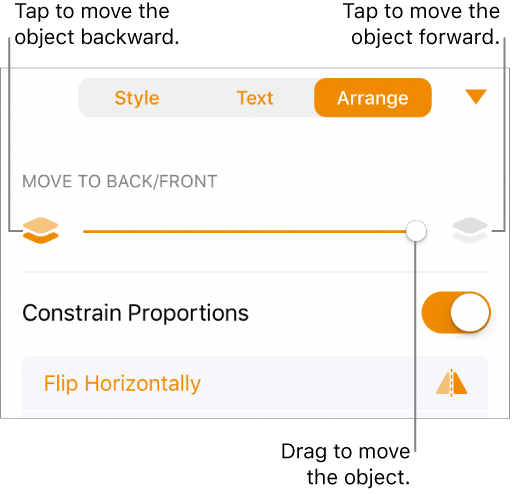
Drag the slider until the object is layered where you want it.
Tap the icons to move the selected object forward or backward.
Touch and hold an object, then with another finger, tap the other objects you want to group.
Lift your fingers, then tap Group.
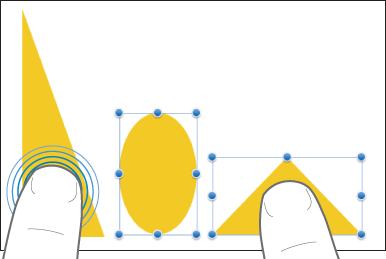
To ungroup objects, tap the group, then tap Ungroup.
When an object is locked, you can’t move, delete, or modify it in any way until you unlock it.
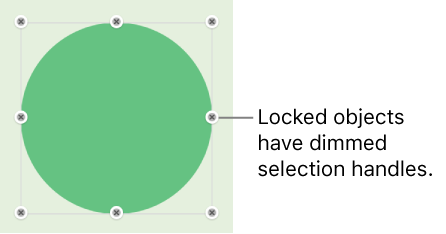
Select one or more objects, then tap .
Tap Arrange, then swipe up and tap Lock at the bottom of the controls.
If you don’t see Lock, the object is set to Move with Text. Tap Wrap, then turn off Move with Text and try again.
To unlock an object, tap it, then tap Unlock.