
In a page layout document, objects are always anchored to the page. In a word-processing document, you must specify what objects are anchored to:
A specific location on the page: The object doesn’t move when you add text or other objects to the page.
Specific text: The object moves with its associated text, and a marker  appears in the text where the object is anchored.
For both types of documents, you can also specify how text wraps around objects.
Tap the object, tap  , then tap Arrange.
Do one of the following:
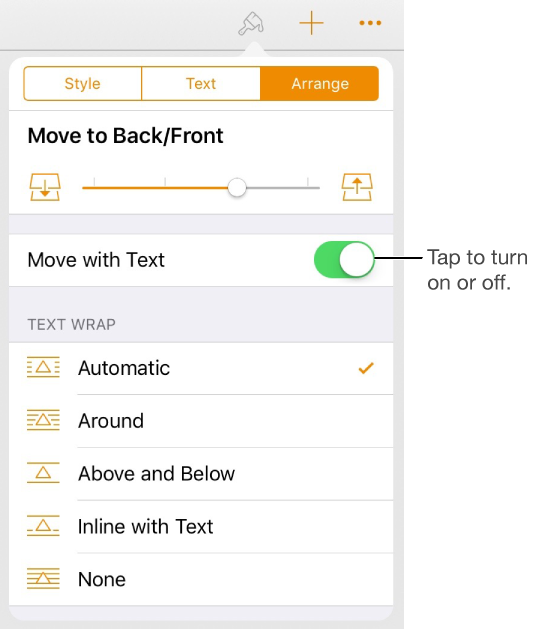
Fix the object on the page: Turn off Move with Text. The object stays in a fixed location on the page, and text flows around it.
Let the object move with text: Turn on Move with Text. The object maintains its position in relation to the text it’s anchored to.
When you tap the object, a marker appears in the text where the object is anchored.
Tap the object, tap , then tap Arrange.
Tap a Wrap option:
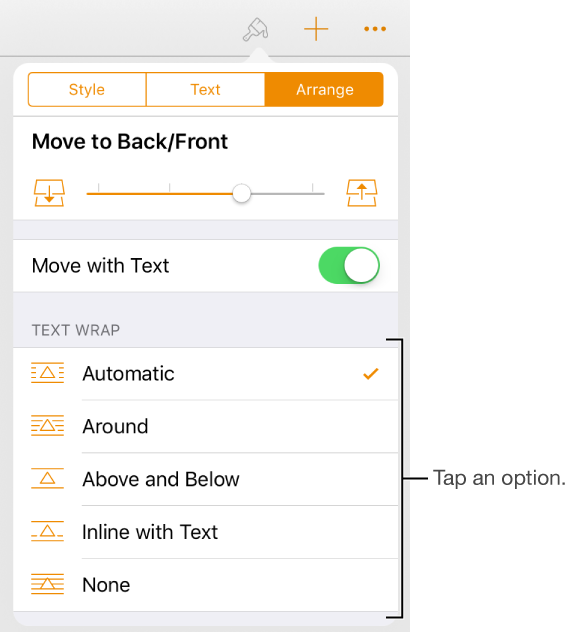
Automatic: The object uses whichever text wrap option seems most appropriate for the object’s placement in relation to the page and surrounding text.
Around: Text flows on all sides of the object.
Above and Below: Text flows above and below the object but not on the sides.
Inline with Text: The object sits on the baseline of the text and moves with the text. If you don’t see this option, make sure Move with Text is turned on for the object.
None: The object doesn’t affect the flow of text.
To change the amount of space between the text and the object, drag the Extra Space slider.