
You can create text links that your readers can tap or click to open a webpage or a preaddressed email message. You can edit these links or deactivate them so that they appear and behave as normal text.
If you don’t want Pages to automatically format web and email addresses as active links, you can turn off automatic link formatting.
Select the text you want to turn into a link.
Tap  in the shortcut bar above the keyboard, then tap Link.
In Link Settings at the bottom of the screen, tap Link To, then tap Webpage.
Type the full URL of the webpage in the Link field.
The URL must be a recognizable web address (beginning with www or http, for example).
To add custom text for the link (so the URL isn’t displayed in the document), type the text in the Display field.
To verify the link, tap Back, then tap Open. If you’re finished, tap the document to close the settings.
Select the text you want to turn into a link.
Tap in the shortcut bar above the keyboard, then tap Link.
In Link Settings at the bottom of the screen, tap Link To, then tap Email.
Enter an email address and subject in the To and Subject fields.
To change the text of the link, select the text in the Display field, then enter your own.
For example, you may want the link in the document to show the recipient’s name and not the entire email address.
To verify that the correct information appears in the email window, tap Back, then tap Compose Email. If you’re finished, tap the document.
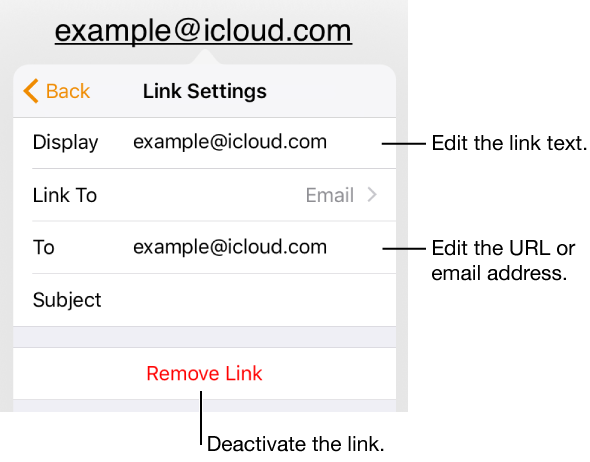
Tap the link, tap Link Settings, then change any aspect of the link, as shown below.
Removing the link doesn’t delete the link text in your document.
If you don’t want Pages to format website URLs and email addresses as active links, you can turn off automatic formatting.
Tap  in the toolbar.
Tap Auto-Correction, then turn off Auto-Detect Links.
The setting applies to all Pages documents. Existing links aren’t affected by the change.