Set tab stops

You can use tab stops to align text. When you insert a tab in text or a table cell, the insertion point and any text to the right of it move to the next tab stop, and text you enter starts at that point. You can also add tab stops for center-aligned text, right-aligned text, and decimal-aligned numbers.

Insert a tab in text

  1. Tap the text to place the insertion point where you want to insert a tab stop.

  2. Tap Tab button in the shortcut bar above the keyboard, then tap Tab.

    The insertion point moves to the closest tab stop. Tapping Tab again moves to the next tab stop, and so on.

To immediately undo a tab insertion, tap Undo.

Set tab stops on the ruler

  1. Select the paragraphs you want to format.

  2. Tap the ruler where you want to place a tab stop.

    A marker is placed on the ruler where you tapped.

    If the ruler isn’t visible, tap Tools button, tap Settings, then turn on Ruler.

  3. Touch and hold the marker until the section of ruler is magnified, then drag the marker to place it precisely.

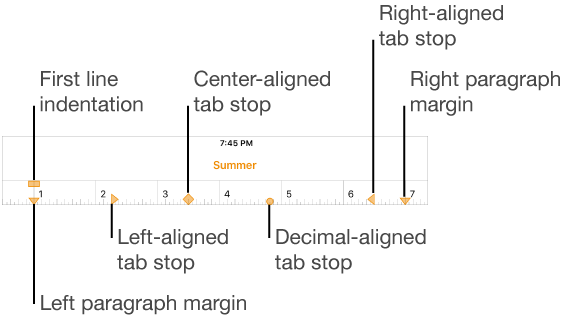
  4. To change the tab stop alignment, double-tap the tab stop until you see the alignment you want.

    Ruler showing controls for left and right margins, first line indent, and four kinds of tab stops.

To remove a tab stop, touch and hold the tab stop marker, then drag it below the ruler until it disappears.

See also
Set paper size and margins