
Most Pages templates are created for standard paper sizes in portrait (vertical) orientation. You can change the paper size for your document. If you need to change the page orientation of a document, you can do so in Pages on your Mac.
Tap
in the toolbar, then tap Document Setup.
Tap Change Paper Size at the bottom of the screen, then tap a paper size.
Drag the double arrows on each side of the document body to change the page margins.
Tap Done to return to the document view.
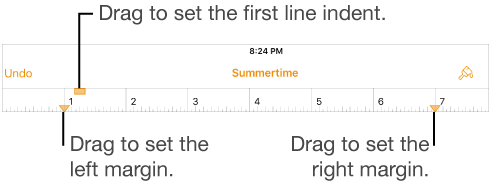
Tap in a paragraph, or select one or more paragraphs.
If the ruler isn’t showing, tap
, tap Settings, then turn on the Ruler.
Drag the margin and paragraph indent markers to where you want them.
As you drag, you see a magnified view of the marker with its numerical location on the ruler to help you place it precisely.
If you have trouble selecting the first line indent marker, try turning your device to landscape (horizontal) orientation to move the marker away from the Undo button.

For more information about using rulers, see Show or hide the ruler.