
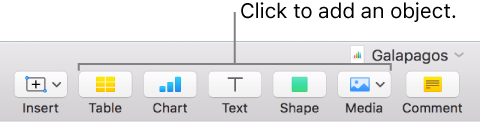
An object is any item you place on a sheet. Tables, charts, text boxes, shapes, and photos are examples of objects. Object types are represented by buttons in the toolbar. Click these buttons to select specific objects to add to your sheets.
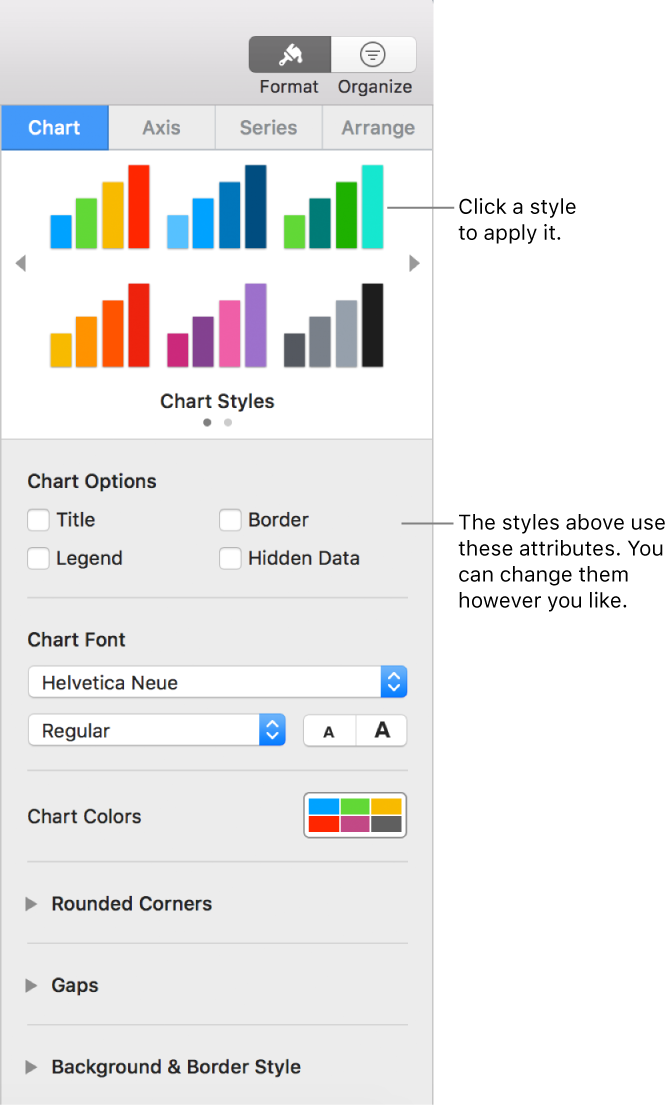
You can change the look of an object by modifying individual attributes of it—like its fill color, border, shadow, and more—or you can quickly change the overall appearance of an object by applying a predesigned object style to it. Object styles are combinations of attributes that are designed to match the template you’re using.
When you select an object, you see formatting controls for it in the sidebar on the right. Only the controls for the type of object you selected are visible. If you don’t see a sidebar, click  in the toolbar. (Click the button again to hide the sidebar.)
You can layer objects on a sheet, resize them, nest them so they appear inline with the text inside a text box or shape, and more.