
You can set Numbers to automatically capitalize words at the beginning of sentences. You can also quickly make selected text all uppercase or lowercase, or format text as a title, with the first letter of each word capitalized.
Choose Numbers > Preferences (from the Numbers menu at the top of your screen).
Click Auto-Correction at the top of the preferences window.
In the Spelling section, select the checkbox next to “Capitalize words automatically.”
This setting applies only to Numbers, and not to other applications on your Mac.
Select the text you want to change.
To change all of the text in a text box or a table cell, select the text box or triple-click the table cell.
Click the Text tab at the top of the sidebar on the right, then click the Style button near the top of the sidebar.
If you don’t see a sidebar, or the sidebar doesn’t have a Text tab, click  in the toolbar.
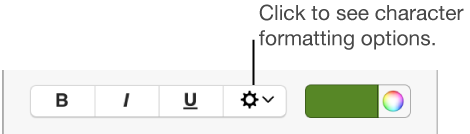
In the Font section, click  , then click the Capitalization pop-up menu and choose an option:
None: The text is left as you entered it, with no changes.
All Caps: All text is capitalized at the same height.
Small Caps: All text is capitalized with larger capitals for uppercase letters.
Title Case: The first letter of each word is capitalized.