
You can print a Numbers spreadsheet using any printer you set up on your Mac. Open System Preferences on your Mac then click Printers & Scanners to set up a printer.
Note: Before you print a spreadsheet, you might want to change its settings so that it looks the way you want it to print. For example, you might want to hide or show a table name and turn off the gridlines so they don’t appear.
In Print Setup, you can specify other settings that affect your printed spreadsheet but not your working canvas. These settings include page numbers, margins, page header, and more.
Choose File > Print, then specify print options in the sidebar on the right.
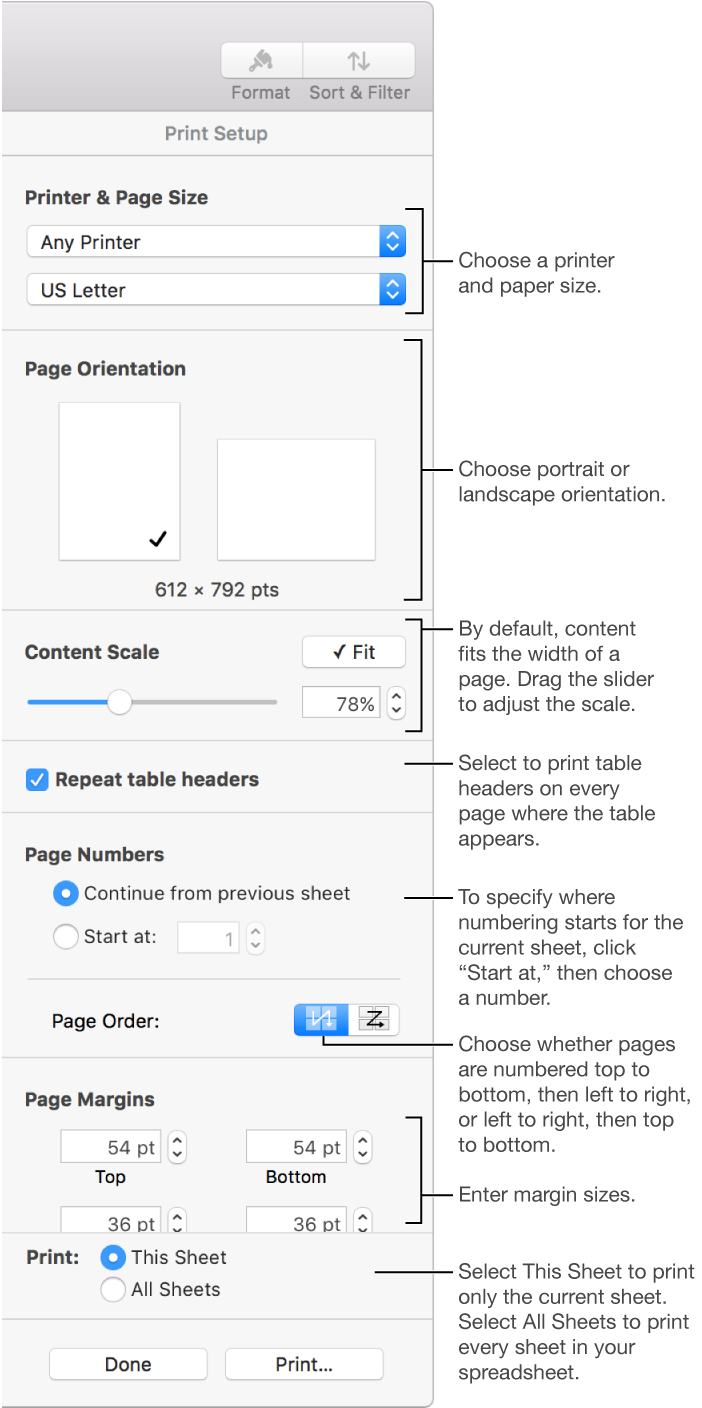
By default, Numbers scales your content so that it fits the width of one page. To display content across multiple pages, drag the slider to adjust the scale. To fit content to the width of a page again, click Fit. (If you open a spreadsheet from Numbers ’09, Fit is turned off by default.)
Page numbers are printed by default. Use the controls in the Page Numbers section of the sidebar to have page numbers continue from the previous sheet or to have them restart on the current sheet.
If you don't want page numbers to print on specific sheets, you must delete them from those sheets. Click the center of the footer on the miniature sheet, select the page number, then press delete on the keyboard.
To add a header to the current sheet, move your cursor over the miniature sheet, then click and type in the header fields that appear.
Alternatively, you can click in the fields and choose Insert > Page Number, Page Count, or Date & Time (from the Insert menu at the top of your screen). If you want a header or footer on every sheet (other than the default page number at the bottom), you must add it to each one.
To change the look of header and footer text, select the text, then choose options in the Text tab in the Print Setup sidebar.
Click Print.
Note: A print dialog appears with options to specify the number of copies, range of pages to print, and more.
To exit the print settings at any time, click Done at the bottom of the sidebar to return to your sheet.
To customize how your spreadsheet looks when it’s exported to PDF, specify the print settings, click Print, then click PDF.