Align and position objects

Use alignment and spacing guides to help you place objects precisely. When guides are turned on, they appear as you drag an object on a sheet in alignment with, or equidistant to, another object. You can turn the guides off and on as needed. You can also specify an object’s location using its x and y coordinates.

Turn on alignment guides

You can turn on alignment guides to help position objects on the sheet. Guides appear only when you drag objects on the sheet.
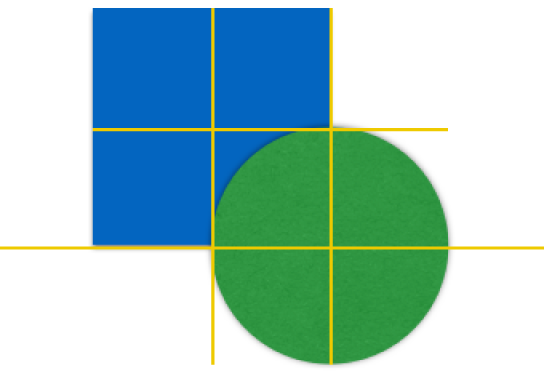
Alignment guidelines over two objects

  1. Choose Numbers > Preferences, then click Rulers (from the Numbers menu at the top of your computer screen).

  2. Select any of the alignment guides:

    • Center guides: Indicate when an object’s center aligns with another object's center or the center of the sheet.

    • Edge guides: Indicate when an object’s edges align with another object’s edge or an edge of the sheet.

Align an object using x and y coordinates

  1. Select an object.

  2. In the Arrange pane of the Format inspector, enter x and y values in the Position fields.

    The x value is measured from the sheet’s left edge to the object’s upper-left corner.

    The y value is measured from the sheet’s top edge to the object’s upper-left corner.

Align objects along an edge of the sheet

You can align all of your objects with the edge of the sheet.

  1. Select one or more objects.

  2. In the Arrange pane of the Format inspector, choose an option from the Align pop-up menu.

    If two or more objects are selected, the objects align to the object most in the direction you selected. For instance, if you align two objects using the Left command, the object that is most left does not move, and the other object aligns to it.

Position objects with equal spacing

You can position the objects so there is equal spacing between objects on a horizontal or vertical axis.

  1. Select two or more objects.

  2. In the Arrange pane of the Format inspector, choose an option from the Distribute pop-up menu:

    • Evenly: Objects are spaced equally along both the horizontal and vertical axes.

    • Horizontally: Objects are spaced equally along a horizontal axis.

    • Vertically: Objects are spaced equally along a vertical axis.

Move an object one point at a time

You can nudge an object to move it by single-point increments.