You can add text directly to a table cell and change the appearance of text—including its font, color, size, and alignment—with text-specific controls.
If you want to add text outside of a table cell, you can add a text box to a sheet. A text box is an object that can be modified like most other objects; you can rotate it, change its border, fill it with a color, layer it, and more. The text inside the box can be formatted like any other type of text.
Click Text
in the toolbar, then drag one of the text box styles to the sheet (you can change how the text looks later).
Type your own text to replace the placeholder text.
Resize the text box if necessary:
If the text overfills the box: Select the text box, then drag the clipping indicator until all text is showing.
If the text box is too large or you want to change its shape: Select the text box, then drag any selection handle (the squares around the border) to resize it.
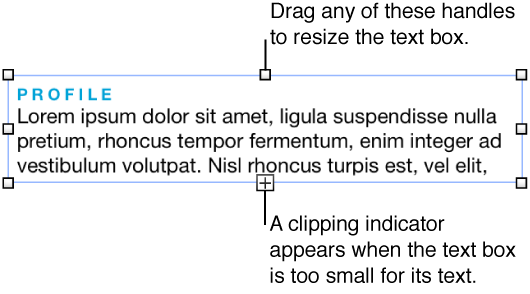
You can also add text in a shape. To delete a text box, select it, then press Delete.
You can insert special characters in text, such as mathematical symbols; letters with accent marks; arrows and emoticons; Japanese, Chinese, and Korean characters; and more.
Click in the text where you want the character or symbol to appear.
Choose Edit > Special Characters to open the Character Viewer.
Click an icon at the bottom of the Characters window to choose a category of characters (click the left or right arrows to see more categories).
Click the character you want to insert in your text.
For information about using keyboards and input methods for other languages, go to Help > Help Center and search for "input menu.”