A table must contain at least one body row and one body column, and can have up to five header rows and five header columns. Header rows are the topmost cells in each column. Header columns are the leftmost cells in each row. Headers stand out from the rest of the table, so you can use them to label the data in each row or column.
Click the table, then do any of the following:
Add columns to the right side of the table: Drag
to the right.
To add only one column, click
.
Delete columns from the right side of the table: Drag
to the left. You can delete only empty columns.
Add a column anywhere in the table: Click the lettered bar above the column next to where you want to add a new column, click the down arrow, then choose Add Column Before or Add Column After.
Delete a column anywhere in the table: Click the lettered bar above the column you want to delete, click the down arrow, then choose Delete Column.
Add or remove rows and columns at the same time: Drag
.
Click the table, then do any of the following:
Add rows to the bottom of the table: Drag
downward.
To add only one row, click
.
Delete rows from the bottom of the table: Drag
upward. You can delete only empty rows.
Add a row anywhere in the table: Click the numbered bar next to where you want to add a new row, click the down arrow, then choose Add Row Above or Add Row Below.
Delete a row anywhere in the table: Click the numbered bar for the row you want to delete, click the down arrow, then choose Delete Row.
Add or remove rows and columns at the same time: Drag ![]()
Click the table.
A lettered bar appears above the columns and a numbered bar appears to the left of the rows.
Do any of the following:
Select a single row or column: Click the bar for the row or column you want to select.
Select multiple rows or columns: Click the bar for a row or column, then drag a selection handle (a white dot) to encompass the rows or columns you want.
Command-click the row or column bar to select discontiguous rows or columns.
Select one or more rows or columns, then do either of the following:
Move rows: Click and hold the numbered bar for the rows so they appear to lift off the table, then drag above or below another row.
Move columns: Click and hold the lettered bar for the columns so they appear to lift off the table, then drag to the right or left of another column.
If you drag rows or columns outside of an existing table, you create a new table.
You can change the width of specific columns and the height of specific rows in a table.
Click the table.
Do any of the following:
Manually resize: Move the pointer over the right edge the lettered bar for the column you want to resize until you see
, then drag to resize. To resize a row, move the pointer over its numbered bar.
If you resize multiple rows or columns, they resize proportionally to each other. To resize the rows or columns to be the same size, Option-drag.
Resize precisely: Click a cell in the row or column you want to change. In the Table pane of the Format inspector, click the disclosure triangle next to Row & Column Size, then use the arrows to specify the size you want. The entire row or column is resized. Selecting cells from more than one row or column resizes all of the rows or columns included in the selection.
Automatically shrink a column or row to fit its contents: Double-click the right edge of a lettered bar or the bottom edge of a numbered bar. Or in the Table pane of the Format inspector, click the disclosure triangle next to Row & Column Size, then click Fit.
Make all columns the same width or all rows the same height: Select the table, then choose Table > Distribute Rows Evenly or Table > Distribute Columns Evenly (the Table menu is at the top of your computer screen).
Make several columns the same width or several rows the same height: Select a column or row, then Command-click the other columns or rows. Choose Table > Distribute Rows Evenly or Table > Distribute Columns Evenly (the Table menu is at the top of your computer screen).
You can hide one or more rows or columns in a table. Hiding rows and columns is useful when you need to use their data for formulas, but you don’t want them to be visible.
You can use cells from hidden rows or columns in formulas, and when you sort, the hidden cells are also sorted.
Select the rows or columns you want to hide.
Move the pointer over the numbered bar for the rows or the lettered bar for the columns. Click the down arrow, then choose Hide Selected Rows or Hide Selected Columns (in the Table menu at the top of the computer screen).
To show hidden rows or columns, select a row or column adjacent to the hidden ones. Move the pointer over the bar, click the down arrow, then choose an Unhide option.
To unhide all rows or columns, click anywhere in the table, then choose Table > Unhide All Rows or Unhide All Columns.
Header rows and columns are labels only. Data in header cells isn’t included in charts or formulas.
Adding header rows, header columns, or footer rows converts existing rows or columns into headers or footers. For example, if you have data in the first row of a table and you add a header row, the first row is converted to a header using the same data.
Click anywhere in the table.
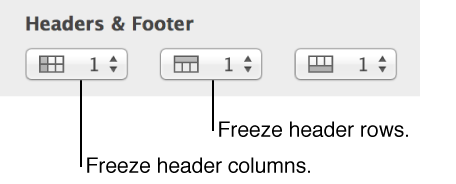
In the Table pane of the Format inspector, choose the number of header rows or header columns you want from the Headers & Footer pop-up menus.
Click anywhere in the table.
In the Table pane of the Format inspector, do any of the following:
Choose Freeze Header Columns from the header column pop-up menu.
Choose Freeze Header Rows from the header row pop-up menu.
