Add and edit images

You can add photos and graphics to any sheet. You also can apply a style to an image, crop it by adding a mask, and make adjustments to its background and exposure.

Numbers provides many predesigned image styles—coordinated sets of borders, reflections and shadows—that are designed to match a spreadsheet’s theme. You can quickly edit an image by selecting one of these styles, or you can select from a range of additional options to customize its appearance.

Add an image

Mask (crop) a photo

Masking an image allows you to crop out unwanted portions without editing the image itself.

  1. Double-click the image.

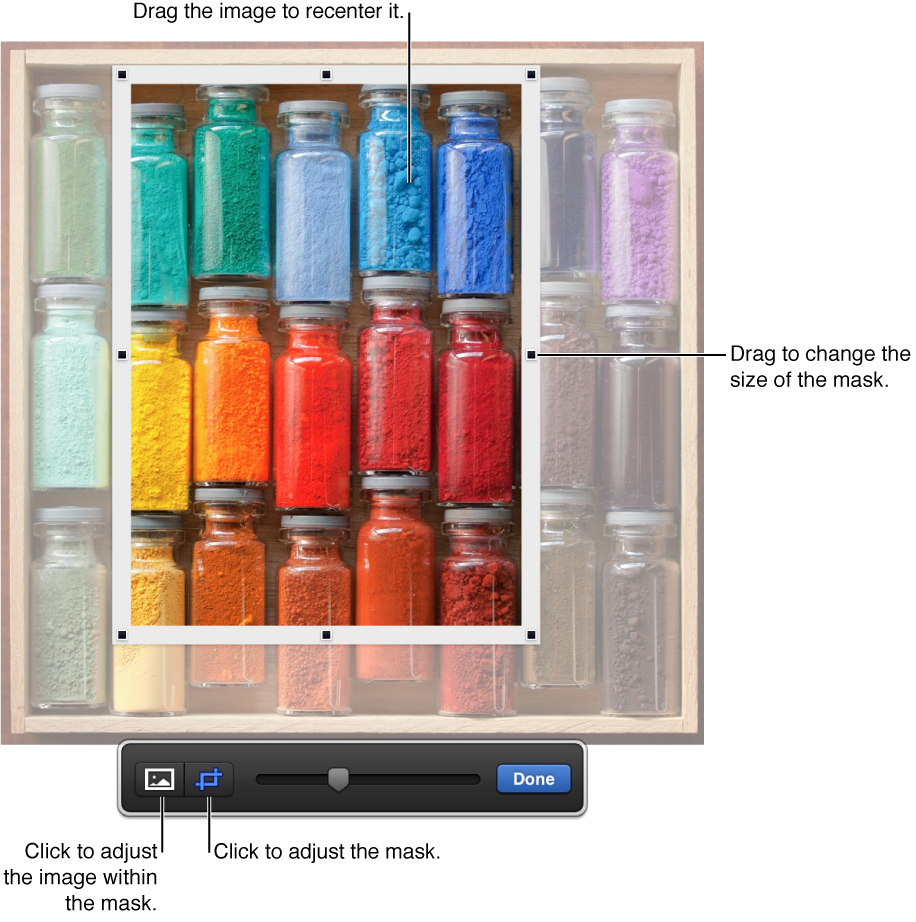
    The mask controls appear. The default mask is the same size as your image.

  2. Use the controls that appear to change which parts of the image are visible:

    Mask controls over a photo

  3. Click Done.

Remove background or other elements from a photo

Use the Instant Alpha tool to make parts of an image transparent. This feature is useful for removing an unwanted background or color.

  1. Select the image.

  2. In the Image pane of the Format inspector, click Instant Alpha.

  3. Click the color you want to remove, then drag slowly over it.

    As you drag, the selection grows to include areas that use similar colors. Click and drag multiple times to remove multiple colors.

    If you hold down the Option key while you drag, all instances of the color that you’re dragging over are removed from the image. If you hold down the Shift key while you drag, colors are added back to the image.

  4. Click Done.

Adjust exposure, saturation, and other image settings

  1. Select the image.

  2. In the Image pane of the Format inspector, use the controls to make adjustments:

    • Exposure: Changes the overall lightness or darkness of the entire image.

    • Saturation: Changes the richness of color in the image. Dragging to the right makes the colors richer or more vibrant.

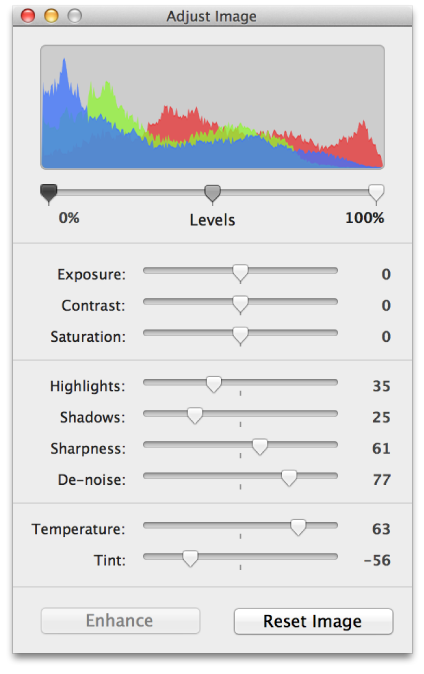
    • Enhance: Automatically adjusts the image by spreading the red, green, and blue tones evenly across the histogram.

  3. To see the image histogram and adjust more advanced features like levels, gamma, temperature, and tint, click Advanced image button.

    Adjust Image window showing histogram

To restore the original settings, click Reset Image.