Move a table
Tap the table to select it.
Drag
 in the top-left corner to move the table to where you want it.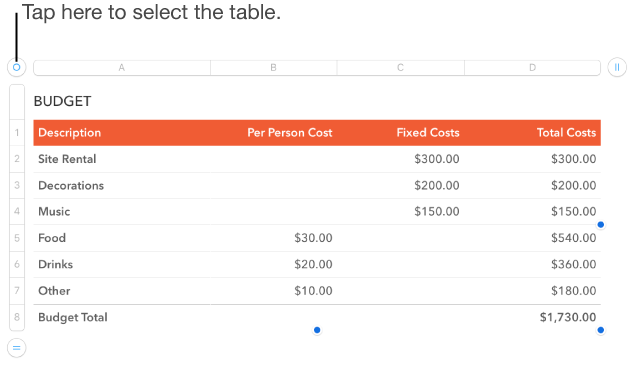

When you tap a table, controls appear around it so you can select, move, resize, and lock it.
Resizing a table makes the table larger or smaller; it doesn’t change the number of rows and columns it contains.
Tap the table to select it.
Drag any of the selection handles (the blue dots) on the edge of the table to make the table larger or smaller.
To resize the rows and columns simultaneously, drag the dot in the corner.
Tap the table to select it.
Drag in the top-left corner to move the table to where you want it.
You can lock a table so that it can’t be edited, moved, or deleted.
Do one of the following:
Lock a table: Select the table, tap  , tap Arrange, then tap Lock.
Unlock a table: Tap the table, then tap Unlock.