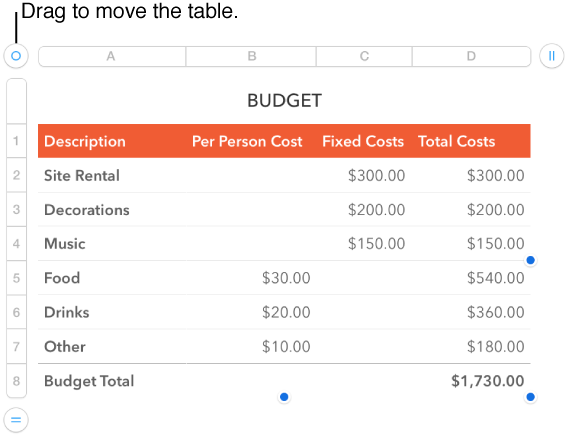

Numbers provides predesigned table styles for each template. After adding a table, you can customize it however you like. You can add as many tables as you want to a sheet.
Tap  , tap
, tap  , then tap a table layout.
Swipe right and left to see more style options.
To add content to a cell, double-tap the cell, then start typing; tap Done to dismiss the keyboard.
Numbers has several intelligent keyboards you can use to enter content. For more information, go to Add content to table cells.
To move the table, tap it, then drag  in the top-left corner to move it to where you want it on the sheet.
To change the appearance of the table or its cells, tap  to show the formatting tools.
When you add a table, it has a placeholder name (such as Table 1), which you can change or hide. Each table on a sheet must have a unique name.
Do any of the following:
Rename the table: Triple-tap the name, then type a new one.
Hide the table name: Triple-tap the name, then tap Delete.
Show a table name: Tap the table, tap , tap Table, then tap Table Options and turn on Table Name.
Tap the table, tap in the top-left corner of the table, then tap Delete.
Tap the table, then tap in the top-left corner of the table.
Tap Copy.
To paste the table, tap once to deselect the table, tap an empty space on the sheet, then tap Paste.