Calculate values using data in table cells

You can create formula or function cells that automatically perform calculations using the data in any cells you select. For example, you can compare values in two cells, calculate the sum or product of cells, and so on. The result of a formula or function appears in the cell where you entered it.

You can also use any of the predefined mathematical functions included with Numbers to create formulas. There are more than 250 functions for applications including statistics, finance, and engineering. Detailed information about each of these functions appears in Formulas and Functions help online and in the Function Browser, which appears when you indicate you’re adding a function to a cell (by tapping the functions key).

Quickly sum a range of cells

  1. Double-tap the cell where you want the result to appear, then tap Function keyboard button to the left of the input bar to open the keyboard for formulas.

    The formula editor and keyboard appear.

    To quickly add the values in a column, use the first empty cell at the bottom of the column as the results cell.

  2. Tap SUM in the keyboard.

  3. To adjust the range of cells included in the sum, drag the cell selection handles.

  4. To add values in discontiguous cells or cell ranges, select one cell or a range of cells, then tap a discontiguous cell and drag the selection handles to select another range of cells.

  5. Tap Ok button in the input bar if you’re done, or tap Next cell button or Next row button in the keyboard to continue entering data in another cell.

    If you tap Cancel button in the input bar, you exit the current cell without saving your changes.

Insert a formula in a cell

You can use any of the 250 predefined mathematical functions included with Numbers in your spreadsheets. The Function Browser includes examples showing how the functions work to help you choose one that suits your needs.

  1. Double-tap the cell where you want the result to appear, then tap Function keyboard button to the left of the input bar to open the keyboard for functions.

    The formula editor and keyboard appear.

  2. Tap functions in the keyboard, then tap Categories in the list of functions that appears.

  3. Tap a category, then tap a function to insert it in the input bar. Scroll to see the entire list within a category.

    If you’re not sure which function to use, tap Info button next to any function to read more details about it.

    For quick access to functions you recently used, tap the Back button to return to the top level, then tap Recent.

  4. After you select a function, tap each token in the input bar, then select a cell or cell range to replace the argument name with a cell address or other data, as needed.

    Formula bar with argument tokens
  5. Tap Ok button in the input bar if you’re done, or tap Next cell button or Next row button in the keyboard to continue entering data in another cell.

    If you tap Cancel button in the input bar, you exit the current cell without saving your changes.

If there’s an error in your formula, Warning icon appears in the result cell. Double-tap it to see the error message.

Edit a function

You can edit an existing function so that it refers to different cells.

  1. Double-tap the result cell with the formula you want to edit.

    The formula editor and keyboard appear.

  2. Do any of the following:

    • Add more cell references: Place the insertion point within the argument area for the function, then select the new cells you want to add.

    • Remove cell references: Place the insertion point within the argument area for the function, select the unwanted cell references, then tap Delete button.

    • Change the cell references: Select the existing cell addresses you want to change, then select the new cells.

  3. Tap Ok button in the input bar if you’re done, or tap Next cell button or Next row button in the keyboard to continue entering data in another cell.

Add, subtract, multiply, or divide values

You can create simple or complex arithmetic formulas to perform calculations on the values in your tables.

  1. Double-tap the cell where you want the result to appear, then tap Function keyboard button to the left of the input bar to open the keyboard for functions.

    The formula editor and keyboard appear.

  2. Select a cell to use as the first argument in your formula, or type a value.

  3. Tap an arithmetic operator, then select a cell to use as the next argument in your formula, or type a value.

    By default, Numbers inserts a + between cell references.

  4. Repeat steps 2 through 3 until you complete your formula.

  5. Tap Ok button in the input bar if you’re done, or tap Next cell button or Next row button in the keyboard to continue entering data in another cell.

    If you tap Cancel button in the input bar, you exit the formula editor without saving your changes.

Compare values

You can use comparison operators to check whether the values in two cells are equal, or if one value is greater or less than the other. To do this, you must set up a statement within a cell—for example A1 > A2, meaning the value in cell A1 is greater than the value in cell A2. The result of the comparison operator is expressed as “true” or “false.”

  1. Double-tap the cell where you want the result to appear, then tap Function keyboard button to the left of the input bar to open the keyboard for functions.

    The formula editor and keyboard appear.

  2. Select a cell to use as the first argument in your formula, or type a value.

  3. Tap the button below the arithmetic operators to open the keyboard displaying comparison operators.

  4. Tap a comparison operator, then select a cell to use as the next argument in your formula, or type a value.

  5. Tap Ok button in the input bar if you’re done, or tap Next cell button or Next row button in the keyboard to continue entering data in another cell.

    If you tap Cancel button in the input bar, you exit the current cell without saving your changes.

Preserve row or column addresses in formulas

You can set row and column references in a formula to be absolute so that you can use the same formula elsewhere in your spreadsheet without changing the cell references.

If you don’t preserve the row or column references, then when you move the formula (by cutting and pasting, or by adding new rows and columns), the references are adjusted relative to the formula’s new location.

  1. Double-tap the cell with the formula whose cell addresses you want to maintain.

    The formula editor and keyboard appear.

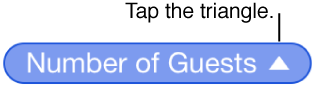
  2. Tap the triangle on the token representing the cell range you want to preserve.

    Tap upward-facing arrow to choose to Preserve Row or Preserve Column
  3. Turn on Preserve Row or Preserve Column for the beginning or ending addresses of the selected range.

    If you change the number of rows or columns in the table, or if you move the formula to a different cell, the preserved row or column references are adjusted, but they maintain their absolute original cell references.

See also
Add content to table cells
Format cells to display different types of data