Change text appearance
Select text, tap
 , then tap Style.
Tap the font name to see more options for text size, color, and font.
Tap any font style button to add bold, italic, underline, or strikethrough to text.
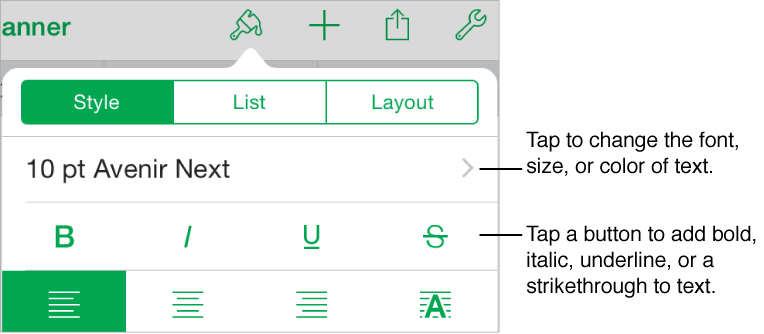

You can change how text in a text box looks by changing its font, font style (bold or italic, for example), size, and color.
Select text, tap , then tap Style.
Tap the font name to see more options for text size, color, and font.
Tap any font style button to add bold, italic, underline, or strikethrough to text.
Select the text, then tap .
Tap Style, then tap the font name (for example, 11 pt Helvetica) below Style.
Tap Color, then choose one of the following:
A color that goes with the template: Swipe to the color options in the first three panes, then tap a color.
Any color not predesigned for the template: Swipe to the color grid to the right of the grayscale options, then tap a color.
To preview text in various colors, touch and hold a color, then drag across the grid. A color label appears for each previewed color to help you reproduce an exact match. Release your finger to select a color.
A color from elsewhere in the sheet: Swipe to the color wheel, then tap  below it. Touch any color outside of the selected object.
To preview colors in the object, touch and hold a color on the spreadsheet, then drag across the sheet to touch other colors. Release your finger to select a color.
A custom color: Swipe to the color wheel, then drag the slider around the wheel.
To change color brightness, drag the top horizontal slider. To change color saturation, drag the bottom slider. To revert to the previous color, tap the circle in the center of the color wheel. (The previous color is shown in the left half-circle in the center of the color wheel.) As you drag a slider:
The selected object changes accordingly.
The right half-circle in the center of the color wheel also reflects your changes. You can compare your changes to the previous color, which is shown in the left half-circle.
A value appears above the slider to help you reproduce an exact color.
A recently created custom color or a recently selected color from elsewhere in the spreadsheet: Swipe to the color wheel, then tap a color well to the right of .