
After you add a source image to the drop zone, you can pan or resize the image within the boundary of the drop zone. You can add a solid color to the drop zone to fill empty areas that are the byproduct of panning or resizing the image.
Do one of the following:
In the toolbar, click Import, then drag an image from the dialog that appears to the Drop Zone in the Layers list or canvas. When the pointer changes to a curved arrow, release the mouse button.
Drag an image from the Layers list, Library, Finder, or Media list (in the Project pane) to the Drop Zone in the Layers list or canvas. When the pointer changes to a curved arrow, release the mouse button.
Drag an image from the Media list to the Source Media well in the Image Inspector.
In the Image Inspector, click To and select a media item in the project from the pop-up menu.
Select the drop zone.
Do one of the following:
In the canvas, double-click the drop zone.
The Adjust Item tool is automatically selected.
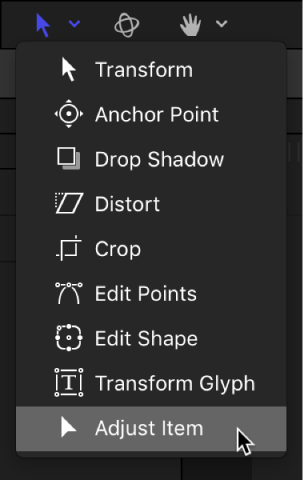
In the canvas toolbar, click and hold the transform tools pop-up menu, then select Adjust Item.
The drop zone bounding box appears as a dotted line.
Drag the scale handles in the canvas to resize the image.
The image’s bounding box appears as a solid line and scales uniformly. Portions of the image that extend beyond the edges of the drop zone appear semitransparent.
Select the drop zone.
In the Image Inspector, drag the Scale slider.
To adjust the horizontal or vertical scale independently, click the Scale disclosure triangle to reveal the X and Y subparameters.
Select the drop zone.
In the canvas toolbar, click and hold the transform tools pop-up menu, then select Adjust Item.
The drop zone bounding box appears as a dotted line.
Place the pointer over the drop zone image, and, when the Pan tool appears, drag within the drop zone to pan the image.
The image’s bounding box appears as a solid line. The dotted line represents the edges of the drop zone. Portions of the image that extend beyond the edges of the drop zone appear semitransparent.
Select the drop zone.
In the Image Inspector, adjust the Pan parameter X and Y settings.
Select the drop zone.
In the Image Inspector, select the Fill Opaque checkbox.
Any empty portion of the drop zone is filled with black.
Use the Fill Color controls to choose a custom drop zone fill color.