
You can adjust layer properties using numeric controls in the Properties Inspector. These controls let you make the same adjustments afforded by the transform tools, but with more precision. Adjustments made in the canvas are simultaneously updated in the Inspector, and vice versa. The available controls vary depending on the type of layer you select in the Layers list or canvas.
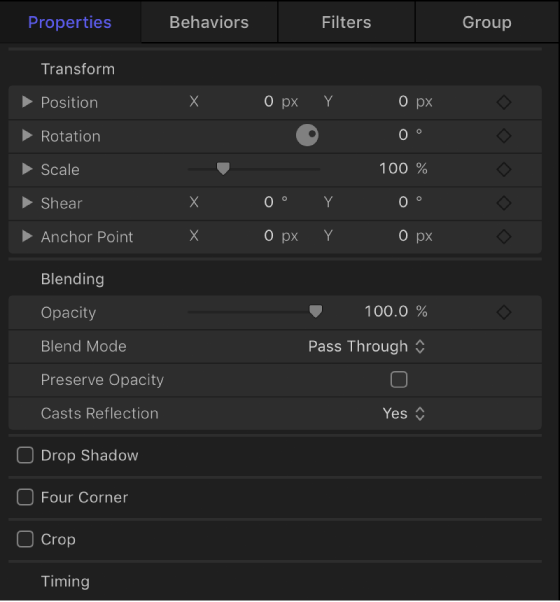
When the Project object (located at the top of the Layers list) is selected, controls become available in the Properties Inspector that allow you to modify the project’s background color, aspect ratio, field rendering, motion blur, reflections, and other global settings. For more information on project properties, see Project properties overview.
Do one of the following:
Click Inspector in the top-left corner of the Motion window, then click Properties.
Choose Window > Inspector (or press F1), then click Properties.
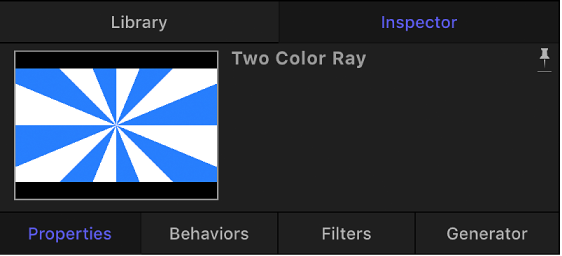
The Inspector opens. The preview area contains a visual preview of the selected layer and can show the multiple frames of moving footage. The Inspector preview area is similar to the Library preview area, but it has no Apply button.
Do one of the following:
Choose Window > Inspector (or press F1).
In the toolbar, click the Inspector button, then in the Inspector, click Properties.
Do one of the following:
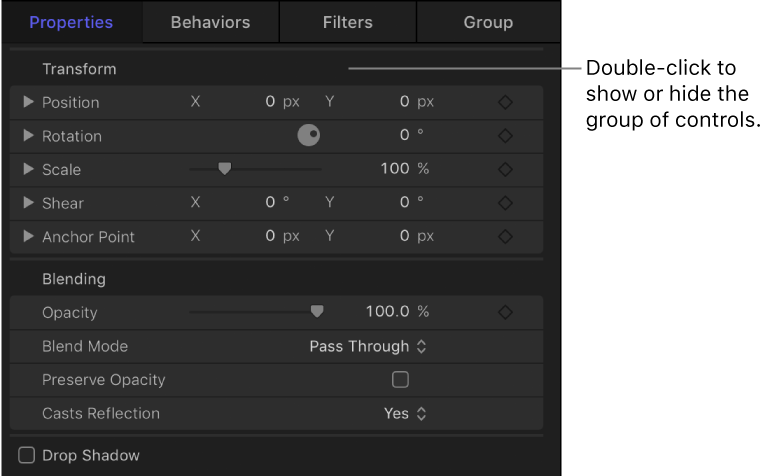
Position the pointer over a row that contains a section name (Transform or Blending, for example), then click Show or Hide.
Double-click the empty space in a row that contains a section name.
Do any of the following:
In the Layers list or canvas, select a layer.
In the Properties Inspector, drag a slider or dial, choose an item from a pop-up menu, select a checkbox, drag a slider, or enter a new number in a value field.
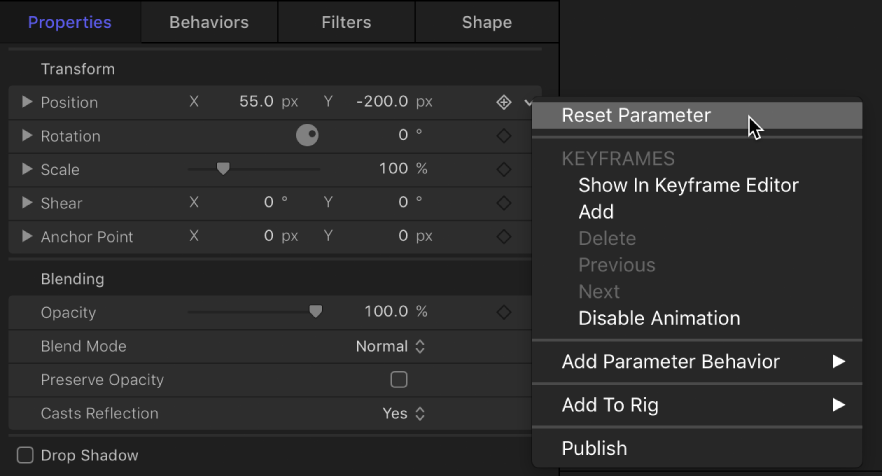
In the Properties Inspector, click the Animation menu in a parameter row (the down arrow that appears when you move the pointer over the right side of the row), then choose Reset Parameter.
For more information on how to use the parameter controls, see User color and gradient controls overview. For a description of the controls in the Properties Inspector, see Properties Inspector controls.