
You can add and remove layers or groups in the Layers list. You can also add or remove layers (but not groups) in the canvas.
Do one of the following:
In the toolbar, click Import, then drag a media file from the dialog that appears to the Layers list or canvas.
Drag a media file from the macOS Finder to the Layers list or canvas.
Drag a content item from the Motion Library to the Layers list or canvas.
For more information about adding content, see Add and manage content overview.
Do one of the following:
In the toolbar, click Add Object, then choose Group from the pop-up menu.
Control-click an empty area of the canvas (in the gray area outside the composition), then choose New Group from the shortcut menu.
An empty group is added above the existing groups in the Layers list.
Choose Object > New Group (or press Shift-Command-N).
An empty group is added above the currently selected object. (If no object is selected, the empty group is added at the top of the Layers list).
Do one of the following:
In the Layer’s list, Option-drag the layer to the position you want (or Option drag a layer in the canvas).
A duplicate of the layer you dragged is placed in the new position.
Note: You can also Option-drag layers between different open Motion projects (to the canvas or Layers list).
Control-click a layer in the Layers list or canvas, then choose Duplicate from the shortcut menu.
When you duplicate a layer, subsequent changes made to the original (source) layer are not inherited by the duplicated layers. However, when you use the Make Clone Layer command, changes made to filters and masks in the source layer propagate to the clones. Creating clone layers improves project playback and rendering performance.
Important: Behaviors don’t propagate to clone layers unless the behavior affects a filter or mask in the source layer.
Do one of the following:
Select the layer to clone, then choose Object > Make Clone Layer (or press K).
Control-click a layer in the Layers list, then choose Make Clone Layer from the shortcut menu.
A clone layer is created and appears in the canvas on top of the original layer. In the Layers list, the clone layer appears with the default name “Clone Layer.” A clone layer icon appears next to the name.
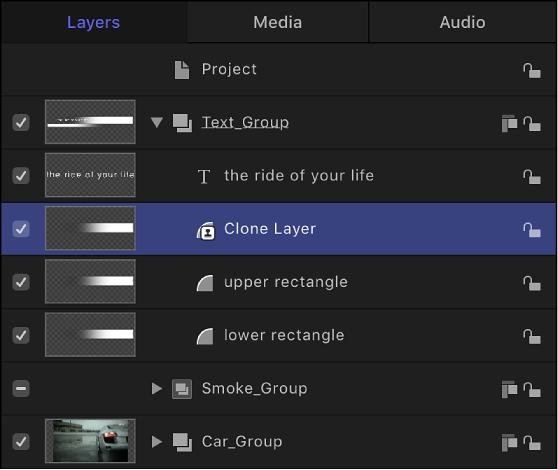
Note: You can modify clone layers independently of their source layer. However, you cannot modify the Frame Blending parameter (in the Timing controls of the Properties Inspector) of a clone layer created from a retimed source layer.
Do one of the following:
Control-click a layer or group in the Layers list, then choose Cut or Delete from the shortcut menu.
Select a layer or group in the Layers list, then choose Edit > Delete (or press Delete) or Edit > Cut.
The layer or group is removed. This action removes the object from the canvas as well.
Note: If you delete a media file (an imported image, image sequence, audio file, or QuickTime movie) from the project, the file is also removed from the Media list unless the “Automatically manage unused media” checkbox is deselected in the General pane of Motion Preferences. When this setting is deselected, media files are deleted from the Layers list (and canvas) but remain in the project in the Media list. Drag an item from the Media list into the canvas to add it back to the Layers list. For more information, see Display, sort, and search the Media list.