
Customize your view of the Media list to see the information most important to you.
Do one of the following:
If the Project pane is visible, click Media at the top of the pane.
Choose Window > Media (or press Command-5).
The Media list opens.
Do any of the following:
To display all visible columns in the Media list, drag the scroller at the bottom of the Media list.

To show or hide a column, Control-click a column heading, then choose the item to show or hide from the shortcut menu.
Items in the list with a checkmark are displayed in the Media list. Items with no checkmark are hidden.
To reorder the columns, drag a column heading left or right to a new position.
To adjust column width, drag a border between column headings.
To adjust row height, do one of the following:
Position the pointer over a horizontal line and drag up or down to decrease or increase the height of all rows. Icons and thumbnails resize themselves as you make the adjustment.
Click the Scale control at the bottom of the Media list, then drag the slider left to decrease row height or right to increase row height.
Click a column heading.
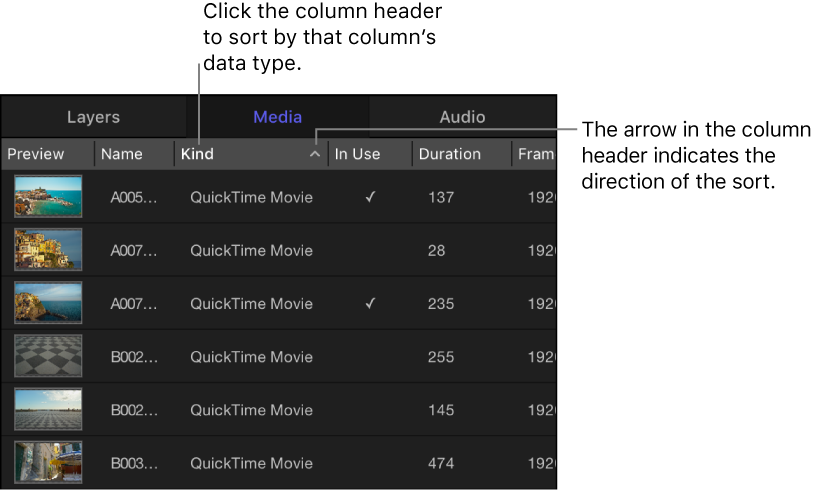
The layers are sorted in the column and a small arrow in the column heading indicates the direction of the sort. To reverse the direction of the sort, click the column heading.
Click the Search button at the bottom of the Media list, then enter the name of items to view in the Search field.
As you type in the Search field, the Media list is filtered to show items containing the text you type.
To stop filtering and return to the complete list, click the Clear button on the right side of the Search field.