In a 3D workspace, everything is seen from the viewpoint of a camera. If you want to export your project specifically from a camera view, you must add a scene camera. When you add a scene camera to a project, additional reference cameras become available to help you see your composition from various angles, such as top, bottom, left, and right. Scene cameras are used for rendering output when you export your project; what you see through the scene camera represents your final render. Reference cameras are not used for rendering.
There are two types of scene cameras:
Framing: Sets the camera origin (or anchor point) at the focal plane (a plane perpendicular to the camera’s local Z axis—in other words, perpendicular to your line of sight as you look at the canvas). Rotating a Framing camera causes it to orbit round the origin.
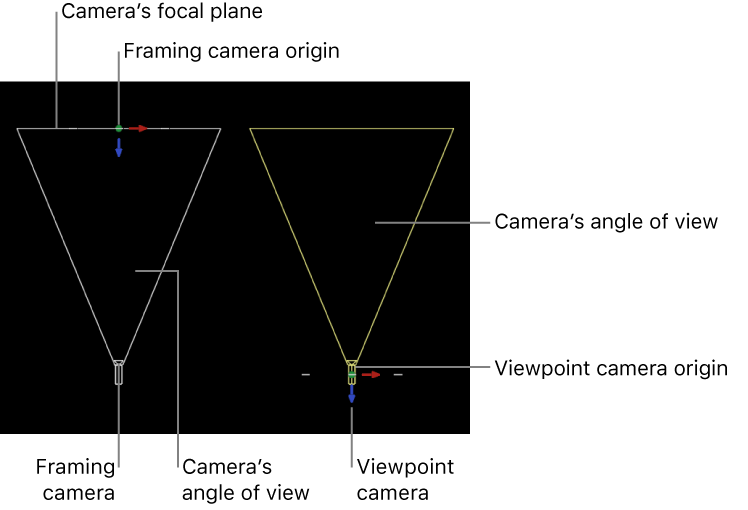
Viewpoint: Sets the camera origin (or anchor point) at the center of projection, “inside” the virtual camera. Rotating a Viewpoint camera causes it to pivot—also known as panning (horizontal) or tilting (vertical).
By default, the first camera you add to a project is a Framing camera. You can change the camera type in the Camera Inspector (see Controls in the Camera Inspector). Once you change the camera type, any subsequent cameras added to the project are set to the last-selected camera type.
Scene cameras appear in the Layers list and canvas (as wireframe objects that you can move and rotate to change your point of view).
Note: New, default 360° projects are created with Viewpoint cameras. For more information, see 360° video overview.
There are two types of views provided by the reference cameras:
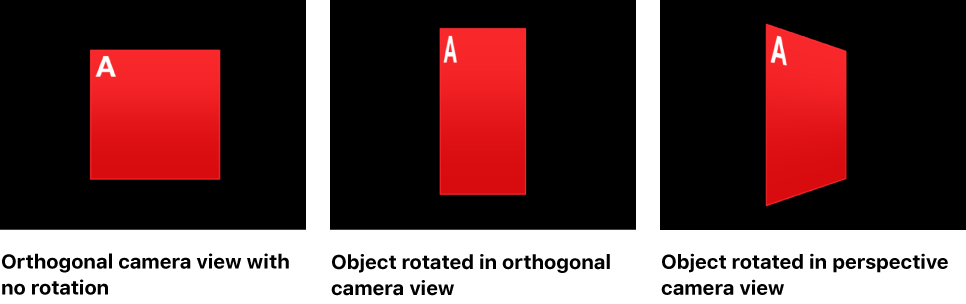
Orthogonal: Views the scene by looking straight down one of the world axes: X, Y, or Z. The Front and Back cameras look straight down the Z axis. The Top and Bottom cameras look straight down the Y axis. The Left and Right cameras look straight down the X axis. Orthogonal views do not show perspective.
Perspective: Views the scene with perspective distortion, the way a real-world camera would. (Scene cameras also view the scene in perspective.)
Reference camera views are selected in the canvas, via the Camera pop-up menu or the 3D compass.
Reference cameras do not appear as objects in the Layers list or canvas.