
In Motion, 2D layers and groups can exist in the same project as 3D layers and groups. You can manipulate any 2D layer in 3D space by using the 3D Transform tool.
In the canvas toolbar, select the 3D Transform tool (or press Q).

Select a layer or group in the Layers list or canvas.
A bounding box with 3D handles appears on the selected object in the canvas.
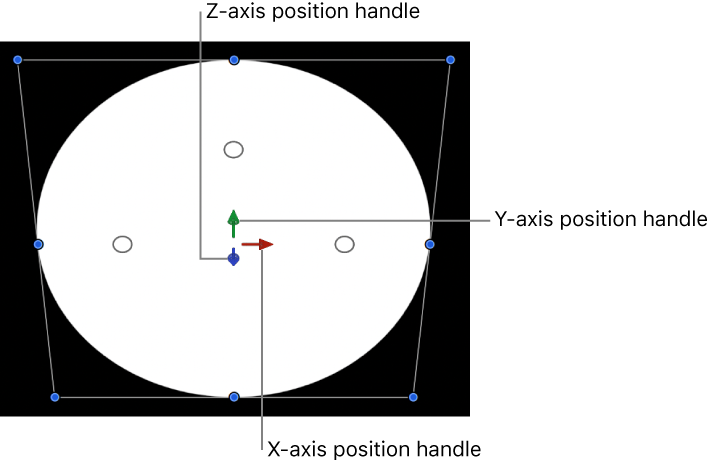
Do any of the following:
Move the object horizontally: Drag the red arrow to move the object along its X axis.
Move the object vertically: Drag the green arrow to move the object along its Y axis.
Move the object forward or backward: Drag the blue handle to move the object along its Z axis.
Tip: If the blue handle is facing forward, drag left or right to move the object forward or backward.
As you drag, the active arrow turns yellow, and the status bar above the canvas displays the current coordinates of the object as well as the distance the object has moved (delta). Coordinates are given in the form of X, Y, and Z. For more information, see View dynamic canvas feedback.
In the canvas toolbar, select the 3D Transform tool (or press Q).
Select a layer or group in the Layers list or canvas.
A bounding box with 3D handles appears on the selected object in the canvas.
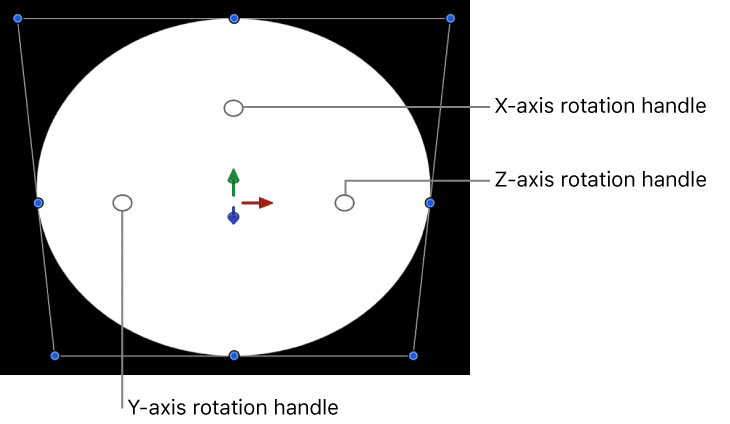
Move the pointer over one of the rotation handles (small circles surrounding the arrows) until a colored rotation ring appears, then drag the ring.
The red ring rotates the object around its X axis.
The green ring rotates the object around its Y axis.
The blue ring rotates the object around its Z axis.
As you drag, the status bar above the canvas displays the absolute rotation values as well as the amount of rotation change (delta).
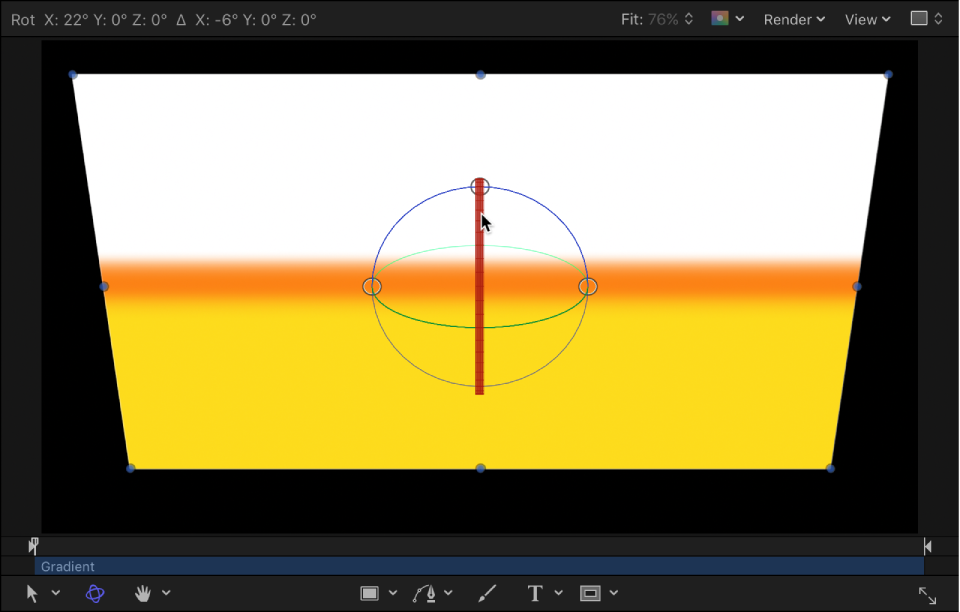
Note: If the values do not appear in the status bar, go to the Appearance pane in Motion Preferences (press Command-Comma), then select the “Dynamic Tool Info” checkbox.
In the canvas toolbar, select the 3D Transform tool (or press Q).
Select a layer or group in the Layers list or canvas.
3D handles appear on the selected object in the canvas.
Pressing and holding the Command key, move the pointer over one of the rotation handles (small circles surrounding the arrows) until all three rotation rings appear, then drag within the rings (but not over the rotation handle).
The object rotates around all three axes simultaneously, and the status bar above the canvas displays the absolute rotation values as well as the amount of rotation change (delta).
Do any of the following:
Display the axis arrows only: Press the Comma key (,).
Display the rotation handles only: Press the Period key (.).
Display the scale handles only: Press the Slash key (/).
When you press any key a second time, the display switches back to the default, with all three of the onscreen controls visible.
As an alternative to dragging in the canvas, you can transform layers and groups in 3D space using graphic controls in the HUD.
In the canvas toolbar, select the 3D Transform tool (or press Q).
Select a layer or group in the Layers list or canvas.
Choose Window > Show HUD or press D.
In the HUD, do any of the following:
Move a layer: Drag in any of the three Move squares to reposition the object along its Z axis, X and Y axes, or X and Z axes. Press and hold the Command key while dragging to simultaneously scale the object as it’s moved, preserving its size relative to the camera.
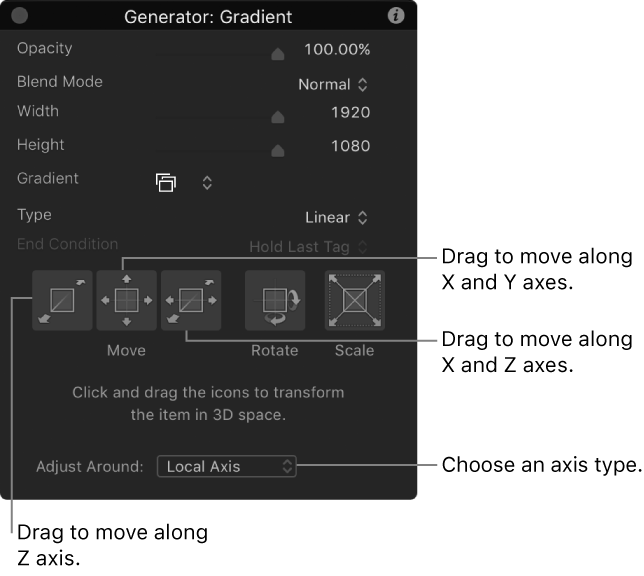
Rotate a layer: Drag in the Rotate square to rotate the object around the X and Y axes. To rotate around the Z axis, press and hold the Command key while dragging.
Resize a layer: Drag in the Scale square to uniformly resize the selected object in the canvas. To constrain scaling to the axis corresponding to the initial direction of the drag, press and hold the Command key while dragging.
Choose an axis type: Click the Adjust Around pop-up menu, then choose an item. Local Axis (the default) orients 3D transforms to the object’s local coordinates. World Axis orients 3D transforms to the coordinates of the 3D grid in the canvas. View Axis orients 3D transforms to the view space of the current view, with the Z axis aligned along the view’s line of sight. For more information on views, see About cameras and views.