
Because control points define the contours of a complex shape, you can move control points to change the shape.
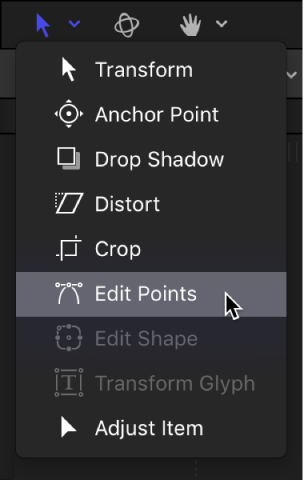
For all of the following procedures, the Edit Points tool (in the transform tools pop-up menu in the canvas toolbar) must be selected.
Tip: You can also modify multiple control points across different shapes simultaneously by selecting them all at once.
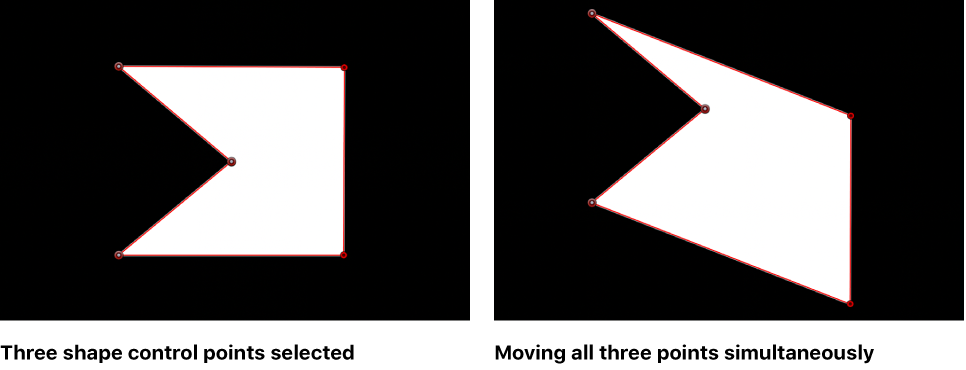
Select control points on the shape in the canvas, then drag the points to a new position.
As you drag selected control points, the rest of the shape stretches or curves to accommodate the change.
Select a control point, then press Command-Left Arrow, Command-Right Arrow, Command-Up Arrow, or Command-Down Arrow to nudge the point by one pixel (or Shift-Command to nudge by 10 pixels).
Select one or more control points.
Press and hold the Shift key while you drag a selected point horizontally, vertically, or diagonally.
Note: To rotate or scale control points, you must use the Transform Control Points command. See Transform a group of control points, below.
You can scale and rotate a group of points as if they were a single object by using the Transform Control Points command. The lines connecting the selected points to unselected points will move and adjust.
Drag a selection rectangle around the points you want to modify.
Choose Edit > Transform Control Points.
A bounding box appears around the selected points.
Note: The Transform Control Points command is available only when at least two points on the same spline are selected.
Drag bounding box handles to scale, rotate, or reposition the group of points as if they were a single object; drag the anchor point handle to reposition the anchor point.
To release the selection, click anywhere outside the selection, or choose to a different tool in the canvas toolbar.
You can also select the line between two control points and drag the edge of the shape.
Drag any edge of a shape object.
The control points on either side of the line are selected, and the line segment moves as you drag.
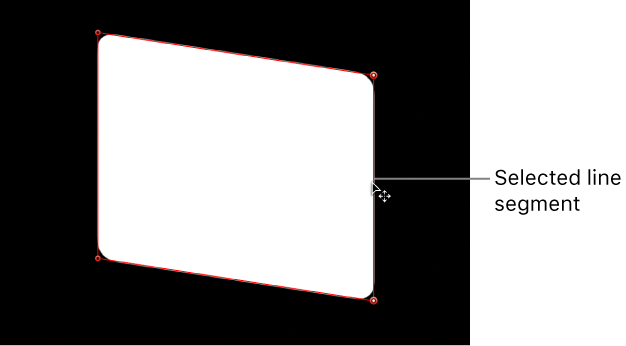
The distance between the two points remains constant, but the line can be moved freely. Press and hold the Shift key to constrain the movement horizontally, vertically, or diagonally.
To release the selection, click anywhere outside the selection, or choose a different tool in the canvas toolbar.