
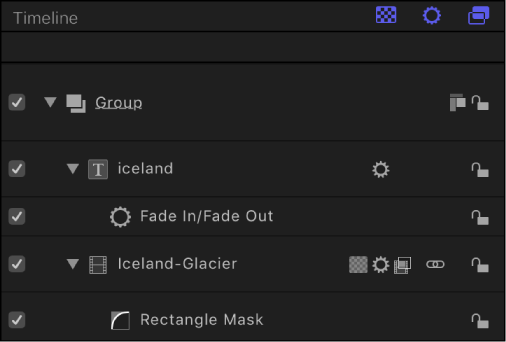
The Timeline layers list (on the left side of the Timing pane) mirrors the Layers list in the Project pane and displays your project objects (groups, layers, filters, behaviors, masks, and so on) and their stacking order. When you reorder in the Timeline Layers list, the change is immediately reflected in the Layers list in the Project pane. The Timeline layers list contains many of the same controls as the Layers list in the Project pane. For more information, see Layers list controls.
The Timeline track area (on the right side of the Timing pane) displays each object in a project as a colored bar (known as a timebar). Different colors represent different types of objects.
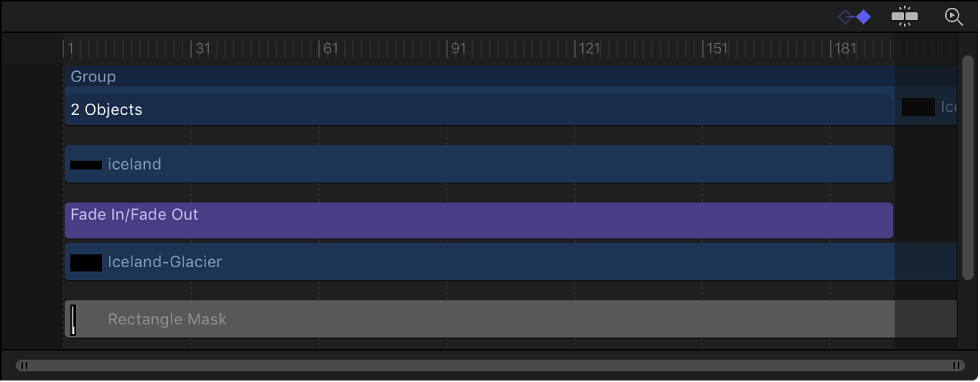
The Timeline track area can contain the following timebars and other icons:
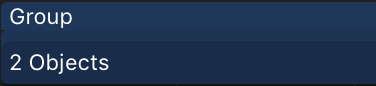
Group or 360° environment: A double blue bar. For groups and 360° environments with multiple layers, the lower bar lists the number of objects in the group.
Object (video clip, still, shape, text, particle system, replicator, camera, or light): A blue bar.

Mask: A gray bar.

Behavior or Filter: A thin purple bar.

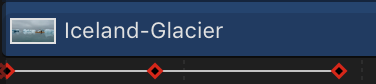
Keyframe: A red diamond beneath the keyframed object (selected keyframes appear white).
Audio: A green bar displaying the audio waveform. Audio tracks are not displayed by default. See Adjust audio tracks.
