
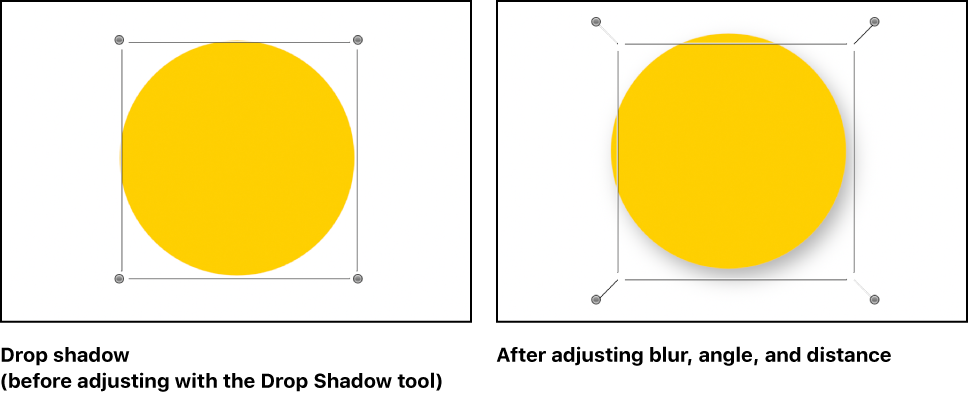
Selecting the Drop Shadow tool enables canvas controls to create a drop shadow and modify its blur, angle, and distance from a layer.

A drop shadow, by default, is a dark, translucent, offset shape that falls behind a layer, as if a light were shining on the layer. Drop shadows are the same size as the layer to which they’re applied, although blurring a drop shadow might enlarge it somewhat. Drop shadows create the illusion of depth, so the foreground layer seems to pop out at the viewer. For this reason, drop shadows are frequently used to create the impression of space between two overlapping layers.
Select a layer in the Layers list or canvas.
A bounding box appears around the selected layer in the canvas.
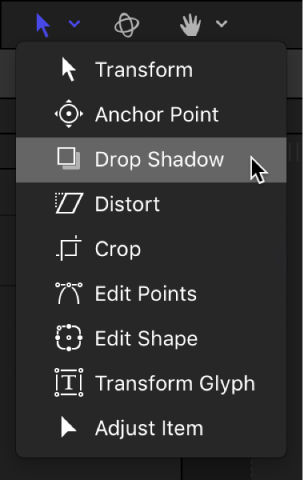
In the canvas toolbar, click and hold the transform tools pop-up menu, then choose Drop Shadow.
In the canvas, a drop shadow bounding box appears around the selected layer. By default, the drop shadow is hidden behind the layer.
Do any of the following: Drag inside the bounding box to set the distance and angle of the shadow.
Set the distance and angle of the shadow: Drag inside the bounding box.
Adjust the blur of the drop shadow: Drag a corner handle on the bounding box.
The Drop Shadow parameters are updated in the Properties Inspector.
Alternatively, you can add a drop shadow by selecting a layer, then selecting the Drop Shadow activation checkbox in the Properties Inspector. For more information, see Properties Inspector controls.