
The Properties Inspector displays the following adjustable parameters for most layers and groups:
Position: Value sliders that define the X (horizontal), Y (vertical), and Z (depth) positions of each layer.
Click the disclosure triangle next to the Position parameter to reveal dials that adjust position around all three axes (X, Y, and Z).
The coordinate system used by Motion specifies the center of the canvas as 0, 0, 0 regardless of the frame size of the project. Moving a layer to the left subtracts from the X value, while moving it to the right adds to the X value. Moving a layer up adds to the Y value, and moving a layer down subtracts from the Y value. Moving a layer closer adds to the Z value, while moving a layer farther away subtracts from the Z value.
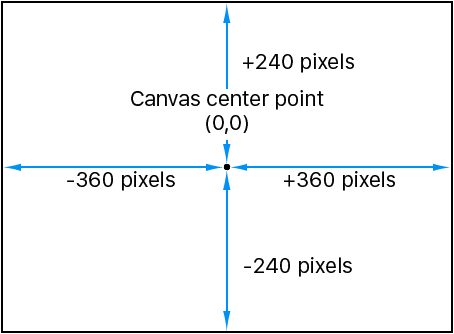
Each layer’s position is centered on its anchor point. Offsetting the anchor point also offsets the position of the layer relative to the X, Y, and Z position values you’ve set.
Rotation: A dial that controls a one-dimensional value representing the number of degrees of rotation around the Z axis. A positive value rotates the layer counterclockwise; a negative value rotates the layer clockwise. Rotating a layer beyond 360 degrees results in multiple rotations when the Rotation parameter is animated.
Click the disclosure triangle next to the Rotation parameter to reveal dials that adjust rotation around all three axes (X, Y, and Z), as well as the Animate pop-up menu.
Animate: A pop-up menu that sets the interpolation for animated 3D rotation channels to one of two options:
Use Rotation: The default interpolation method. Layer rotates from its start angle to its final angle. Depending on the animation, the layer might twist before reaching its final orientation (the last keyframed value). For example, if the X, Y, and Z Angle parameters are animated from 0 degrees to 180 degrees in a project, the layer rotates on all axes before reaching its final orientation.
Use Orientation: This alternate interpolation method provides smoother interpolation but does not allow multiple revolutions. Use Orientation interpolates between the layer’s start orientation (first keyframe) to its end orientation (second keyframe).
Note: The Rotation parameter must be keyframed for its Animate parameter options to have any effect. For information about keyframing, see Keyframing overview. For information about 3D rotation, see Transform layers in 3D space.
Scale: A slider that controls the layer’s scale, relative to its original size. By default, the horizontal and vertical scale of a layer is locked to the layer’s original aspect ratio—represented by a single percentage. Click the disclosure triangle to display independent percentages for the X, Y, and Z scales of the layer.
Note: Setting a layer’s scale to a negative value flips the layer.
Shear: Value sliders that define the X and Y shear of the layer. A layer with no shear has X and Y shear values of 0. Positive values shear in one direction, while negative values shear in the other.
Anchor Point: Value sliders that define the X and Y position of the anchor point relative to the center of the layer. Coordinates of 0, 0 center the anchor point in the bounding box defining the outer edge of the layer. Click the disclosure triangle to expose an additional value slider defining the Z position.
Opacity: A slider that sets the transparency of the layer. For more information, see Modify layer opacity.
Blend Mode: A pop-up menu that sets the Blend Mode of the layer. For more information, see Layer blending overview.
Preserve Opacity: A checkbox that, when selected, renders the layer visible only where another layer is visible behind it in the composite. The front layer uses the opacity value of the layer behind it. For more information, see Modify layer opacity.
Casts Reflections: A pop-up menu that determines whether a layer casts a reflection. Choose from three options:
Yes: The layer is seen reflected in nearby reflective layers.
No: The layer is ignored by reflective surfaces.
Reflection Only: The layer becomes invisible, but appears in reflective surfaces around it.
Note: Reflections are only visible when layers are in a 3D group. For more information on 3D groups, see About 2D and 3D group properties.
An activation checkbox to turn the drop shadow of a layer on and off. When selected, additional controls become available:
Color: Color controls that set the drop shadow’s color. The default color is black.
Opacity: A slider that sets the drop shadow’s transparency.
Blur: A slider that specifies the drop shadow’s softness.
Distance: A slider that sets how close or far a layer’s drop shadow is to the layer. The farther away a drop shadow is, the more distance there appears to be between the layer and anything behind it in the composition.
Angle: A dial that lets you change the direction of the drop shadow. Changing the Angle of the drop shadow changes the apparent direction of the light casting the shadow.
Fixed Source: A checkbox that, when selected, renders the drop shadow as if cast by a fixed light source, regardless of camera or text movement.
An activation checkbox to turn distorting on and off. If a layer is distorted and this checkbox is deselected, the layer resumes its original shape, although the distorted coordinates are maintained. Reselecting the checkbox reenables the distort effect specified by the Four Corner coordinate parameters.
When the Four Corner checkbox is selected, value sliders to modify the X and Y coordinates of the layer’s four corner points (Bottom Left, Bottom Right, Top Right, and Top Left) become available. You can also control these parameters visually in the canvas using the Distort tool. For more information, see Transform tools.
An activation checkbox to turn cropping on and off. If a layer is cropped and this checkbox is deselected, the layer resumes its original size, although the cropping values are maintained. Reselecting the checkbox reenables the cropping effect specified by the crop parameters. You can also control these parameters visually in the canvas using the Crop tool. For more information, see Transform tools.
Value sliders to control all aspects of clip retiming. For more information, see Retime media overview.
The Lighting parameter controls appear only when the parent group is set to 3D.
Shading: A pop-up menu that sets how a layer responds to lights in the scene. There are three options:
Inherited: The layer uses the shading value of its parent.
On: The layer can be lit.
Off: The layer ignores lights.
Highlights: A checkbox that, when selected, causes lit layers to show highlights. This parameter has no effect if Shading is set to Off. Click the disclosure triangle to reveal an additional Shininess parameter.
Shininess: A slider that sets the strength of a layer’s highlights. Higher values create a glossier appearance. This parameter is disabled when the Highlights checkbox is deselected.
For more information, see Add lights.
The Shadows parameter controls appear only when the parent group is set to 3D.
Cast Shadows: A checkbox that sets whether a shadow is cast when a layer lies between a light source and another layer.
Note: This parameter does not affect drop shadows.
Receive Shadows: A checkbox that controls whether neighboring layers’ shadows affect the current layer. When this checkbox is deselected, light affects the layer as if the shadow-casting layer did not exist.
Shadows Only: A checkbox that, when selected, specifies that a layer blocks light and casts a shadow, while the layer itself does not appear in the scene.
For more information, see Shadows overview.
The Reflection parameter controls appear only when the parent group is set to 3D. The Reflection parameter controls are not available for 3D particle emitters, 3D replicators, or normal text layers. However, the Reflection parameters are available for flattened text, which is activated by the Flatten checkbox in the Layout pane of the Text Inspector.
Reflectivity: A slider that controls the shininess of the layer’s surface. When set to 0%, there’s no reflectivity. When set to 100%, the layer is totally reflective, like a mirror.
Blur Amount: A slider that controls how blurry the reflection appears, creating the appearance of soft focus due to the surface quality of the reflecting layer.
Falloff: A checkbox that controls whether the reflection fades with distance from the layer, producing a more realistic result. Click the disclosure triangle to show additional controls that adjust the falloff effect: Begin Distance, End Distance, and Exponent. The Exponent slider adjusts how quickly the reflection becomes fainter as reflected layers move away from the reflecting layer.
Blend Mode: A pop-up menu that determines the blend mode used for the reflection.
For more information, see Reflection controls.
The Media parameters (available when an image layer is selected) contain a thumbnail of the current layer and the “To” pop-up menu.
To: A pop-up menu that lets you choose another image layer in your project to replace the current layer. The replaced media remains in your project in the Media pane.
Use the Timing controls to set the selected object’s In and Out points, as well as the duration of the object. For more information, see Timing controls in the Properties Inspector.